Webinar Clips: How to Turn Any Recording Into Short Videos, Layout by Layout
How to turn webinar recordings into clips that look right: the framing for speaker view, gallery, slides and screen demos, LinkedIn specs, and what attendees and slides need first.
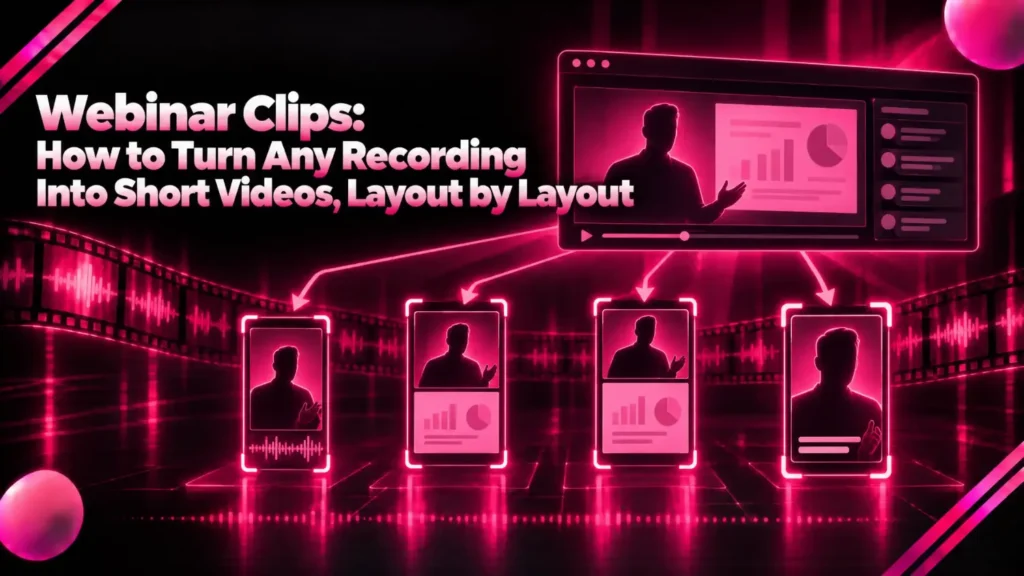
Webinar clips are short videos cut from a recorded webinar, each carrying one point from the session, formatted for LinkedIn, YouTube Shorts, Instagram Reels or TikTok.
This guide is for marketers and hosts who want to turn webinar recordings into clips, and who have found that a Zoom recording does not crop to vertical the way a podcast does.
It covers the six ways a webinar is usually recorded and the framing that suits each, how to record so clipping is easier, which moments to pick, each platform’s limits, and what attendees and slides need before anything is posted.
The short answer: how the webinar was recorded decides the framing. Track the face in speaker view, stack two people from gallery view, and keep slides and demos whole on a blurred background, ideally in 4:5 or 1:1 for LinkedIn. Klyply does all of these on your own Windows PC, so internal recordings never leave the building.
Key takeaways
- A webinar recording is usually one of six layouts, and each needs a different vertical framing. Cropping a slide to 9:16 the way you would crop a face throws away the slide.
- Zoom cloud recording can save several layouts as separate files, but the choice has to be made before the meeting starts.
- LinkedIn accepts videos from 3 seconds to 10 minutes at aspect ratios from 1:2.4 to 2.4:1, so square and 4:5 webinar clips work there.
- Zoom’s recording consent prompt covers the recording, not a public clip. Ask before an attendee’s face or question goes on social media.
- Klyply turns a webinar recording into 1 to 20 captioned clips in 9:16, 4:5, 1:1 or 16:9, with nothing uploaded.
What are webinar clips?
Webinar clips are self-contained moments from a webinar, such as one insight, one framework or one answer to a question, edited to stand on their own as short videos.
A webinar is an hour of expertise that most of the registrants never watch live. Webinar clips put the best five minutes of it in front of people who would never sit through the rest.
Unlike a podcast, a webinar is often more slide than face. That is what makes it harder to clip, and it is why the layout matters more than the tool.
How to turn webinar recordings into clips, layout by layout
To turn webinar recordings into clips that look right, first identify which of six layouts the recording uses, then pick the vertical framing that suits it.
Zoom’s guide to recording video layouts describes what each one captures. Speaker view records only the active speaker, gallery view records the grid of participants, and screen sharing records the shared content with or without the speaker.
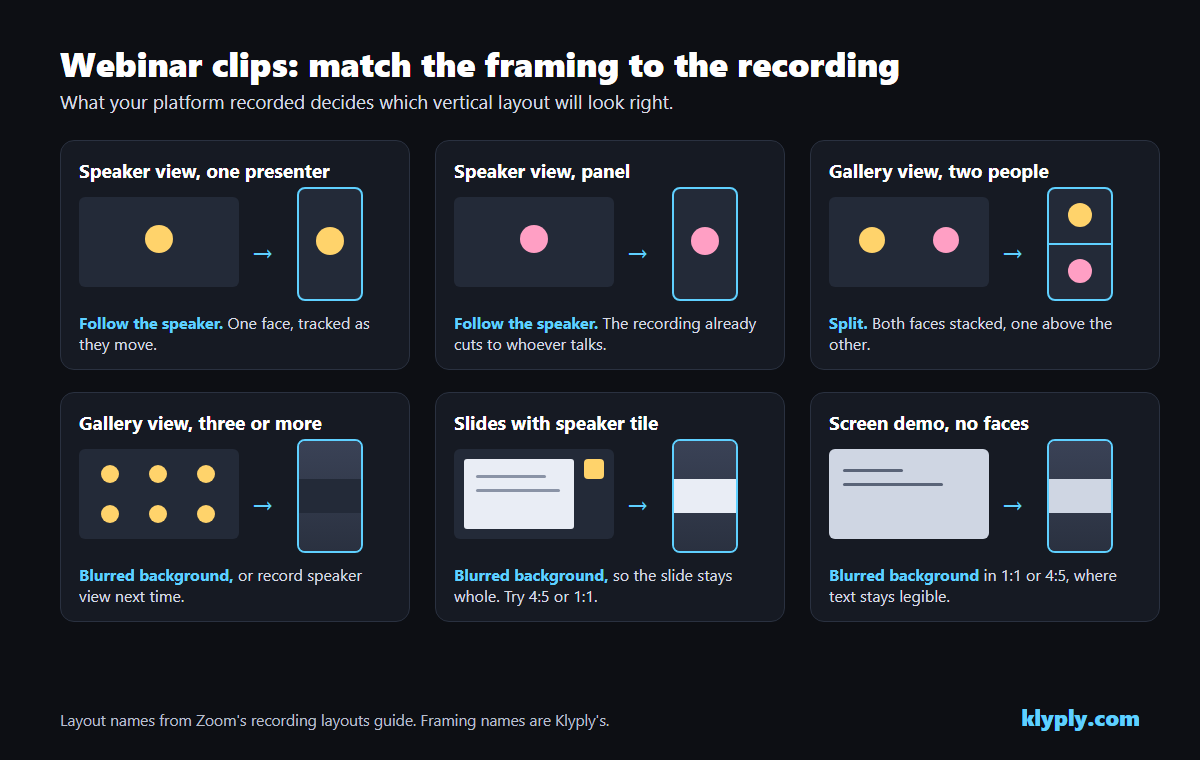
| Recording layout | What is on screen | Best framing | Best shape |
|---|---|---|---|
| Speaker view, one presenter | One face, full frame | Crop that follows the face | 9:16 |
| Speaker view, panel | Whoever is talking, switching | Crop that follows the face | 9:16 |
| Gallery view, two people | Two tiles side by side | Split screen, one above the other | 9:16 |
| Gallery view, three or more | A grid of small tiles | Whole frame on a blurred background | 4:5 or 1:1 |
| Slides with speaker tile | A slide, face in a corner | Whole frame on a blurred background | 4:5 or 1:1 |
| Screen demo | Software, no face | Whole frame on a blurred background | 1:1 or 4:5 |
Speaker view with one presenter
Speaker view with one presenter is the easiest layout to clip: one face fills the frame, so a vertical crop that follows it works just as it does for a talking-head video.
The only risk is a presenter who leans out of frame or turns to a second screen. A crop that tracks the face handles that better than a fixed centre crop.
Speaker view with a panel
A panel recorded in speaker view clips well too, because the recording has already cut to whoever is talking.
Watch for the cuts themselves. Zoom switches the view as different people speak, so a brief interjection from another panellist can cut away in the middle of a clip.
Gallery view with two people
A two-person gallery recording, such as a host and one guest, suits a split screen that stacks one face above the other.
Both reactions stay on screen, which is often the point of an interview webinar. Our workflow for repurposing a podcast into short clips covers two-speaker framing in more depth.
Gallery view with three or more
A gallery grid of three or more people is the hardest layout to clip, because no vertical crop can hold the whole grid and every tile is already small.
Keep the whole frame on a blurred background, in a square or 4:5 shape. Better still, record speaker view next time, which gives one face to follow.
Slides with a speaker tile
Slides with a small speaker tile need the whole frame kept, because the slide carries the meaning and a vertical crop cuts most of it off.
Zoom says cloud recordings show only the active speaker during screen sharing, and its shared-screen layout places that speaker in a tile at the top right. A crop that follows the face would find only that small tile.
Letterbox the full frame over a blurred copy of itself instead. At 9:16 the slide ends up small, so a 4:5 or 1:1 clip shows it far larger.
Screen demos with no face
A screen demo with no face should keep the whole width of the screen, in a square or 4:5 clip, so the interface stays readable.
Interface text is small to begin with. Choose moments where the demo shows one clear result, and let the captions explain what is happening.
Record the webinar so it can be clipped
The cheapest way to better webinar clips is to choose the recording layout before the webinar starts, because afterwards it cannot be changed.
Zoom’s layouts guide says cloud recordings follow the host’s settings chosen before the meeting, and can capture several layouts as separate files at once. Changes made after the meeting begins do not apply.
- Save speaker view and shared screen separately. Clip faces from one file and slides from the other.
- Turn on the presenter’s camera during slides. A face in the shared-screen recording at least gives the clip a person to look at.
- Use large slide text. A slide that is readable on a laptop may not be readable in a 4:5 clip on a phone.
- Keep the original file. Clip from the platform’s own recording, not a copy downloaded from YouTube after it was compressed.
Local recordings behave differently. Zoom says a computer recording reflects the view of the person recording, as they change it, so whoever records decides the layout live.
Find the moments worth clipping
The best webinar clips deliver one useful idea in under a few minutes, with an opening sentence that makes sense to someone who missed the webinar.
- A framework. “There are three reasons this fails” is a clip with a built-in structure.
- A number explained. A figure from the presenter’s own work, with what it means.
- A mistake to avoid. A warning gives the viewer a reason to watch to the end.
- An answer in the Q&A. Questions are often the most specific part of a webinar. Clip the answer, and read the question out in the caption or hook.
- The demo’s payoff. The moment the result appears, not the five minutes of clicking before it.
Skip the welcome, the housekeeping and the agenda slide. Nobody shares “before we begin”.
Where to post webinar clips, and how long they can be
Post webinar clips where the webinar’s audience already is, which for most B2B webinars means LinkedIn first, then YouTube Shorts and Instagram Reels.
| Platform | Length | Shape | Source |
|---|---|---|---|
| 3 seconds to 10 minutes | 1:2.4 to 2.4:1, so 9:16, 4:5, 1:1 and 16:9 all fit | LinkedIn Help | |
| YouTube Shorts | Up to 3 minutes | Vertical or square | YouTube Help |
| Instagram Reels | 3 minutes or less recommended for new viewers | Vertical | Instagram for Creators |
LinkedIn’s video specifications list a 10-minute maximum, a 3-second minimum and aspect ratios from 1:2.4 to 2.4:1, with files up to 5 GB.
YouTube’s help page on three-minute Shorts treats square or vertical videos up to three minutes as Shorts. Instagram’s creator FAQ recommends videos of three minutes or less to people who do not follow you.
The shape matters more on LinkedIn than the length. A slide clip in 4:5 or 1:1 shows the slide far larger than a 9:16 clip does, and LinkedIn accepts both.
Attendees, consent and confidential slides
Before you repurpose a webinar for social media, check two things in every clip: whose face or voice is in it, and what the slides show.
Attendees in the recording
An attendee who asked a question on camera agreed to be recorded, not necessarily to appear in a public clip.
Zoom’s page on consenting to be recorded says participants are asked for consent when they join a recorded meeting or when recording starts, and can leave instead. That prompt is about the recording itself.
For a clip, either ask the attendee, or clip only the presenter’s answer and restate the question in the caption. The second option is usually simpler.
Confidential slides and internal webinars
Check every slide in a clip for anything that should not be public: customer names, pricing, roadmap dates, internal numbers or someone’s inbox in a screen share.
Internal webinars, such as all-hands meetings, training and partner briefings, raise a second question: where the recording goes during editing. A cloud clipper needs the whole recording uploaded. Our guide to offline video clipping software covers tools that keep it on your own machine.
Caption every webinar clip
Caption every webinar clip, because many people watch LinkedIn and short-form feeds with the sound off, and an uncaptioned webinar clip is just a person talking silently.
Webinars are full of product names, acronyms and jargon, which are exactly the words automatic transcription gets wrong. Read every caption before posting.
Place captions where they will not cover the slide. On a letterboxed slide clip, the blurred band below the slide is the natural place. Our guide to vertical video safe zones shows where each app’s buttons sit.
How to make webinar clips with Klyply
Klyply turns a webinar recording into 1 to 20 captioned clips on your own Windows PC, with a framing choice for each of the layouts above.
Nothing is uploaded. An internal training session or a partner briefing stays on the computer it was saved to.
Which Klyply framing to use for each layout
Klyply offers five framings, and four of them map directly to webinar layouts.
- Follow the speaker for speaker view. It finds the face and pans the crop to keep it centred, and it never splits the screen.
- Split for a two-person gallery recording. It stacks the two faces, and falls back to one wider crop if they sit too close together for the halves to differ.
- Blurred background for slides, demos and large grids. It keeps the whole width of the video and fills the space above and below with a blurred copy, so nothing is cropped away.
- Static centre for a locked-off camera where the presenter never moves.
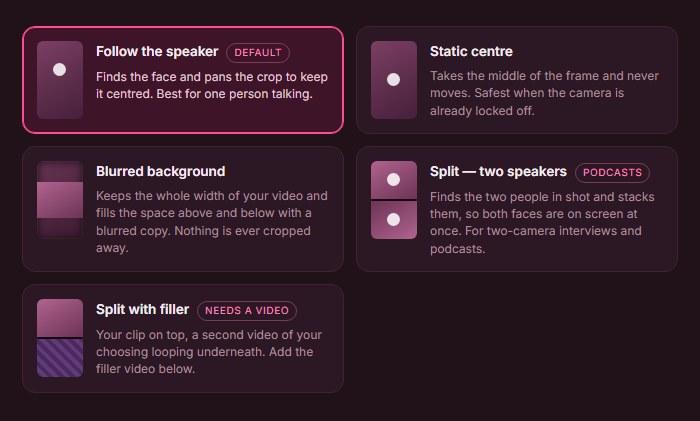
The framing is one choice per run. For a webinar that mixes face time and slides, run it twice: once with Follow the speaker for the talking moments, once with Blurred background in 4:5 for the slide moments. There are no credits, so the second run costs nothing extra.
Shapes, captions and branding
Klyply exports each run in one of four shapes, 9:16, 4:5, 1:1 or 16:9, which covers every format LinkedIn and the short-form apps accept.

- Captions. 27 caption styles, transcribed on your PC. For product names and accents, the Medium and Large v3 transcription models are more accurate than the default.
- Hook title. A title across the opening seconds, such as the question the clip answers.
- Logo. Your company logo on every clip, placed once for the batch.
- Length. Clips from 5 to 180 seconds, and no limit on how long the webinar recording is.
What Klyply costs and where it falls short
Klyply costs $29 for 3 months or $179 for a Lifetime licence, with a 12-month term in between, and there are no credits or per-minute charges.
A fixed term starts at activation, and you can get a refund within 14 days of purchase as long as the key has not been activated.
- It runs on Windows 10 and 11 only, and renders on the PC’s processor, so a long webinar takes longer on an older laptop.
- Framing and shape are one choice per run, not per clip.
- There is no transcript editor, so a misheard product name means a re-render with a larger model.
- It does not post to LinkedIn or schedule clips, and it has no team seats.
- It cannot import straight from a Zoom account. Download the recording first, then open the file.
Common mistakes with webinar clips
Most bad webinar clips come from five mistakes, and most of them are decided before the webinar is recorded.
- Cropping a slide to 9:16. Half the slide disappears, and so does the point.
- Recording only gallery view. A grid of six small faces gives no layout a good result.
- Clipping the agenda. The first ten minutes of most webinars are setup. The clips are in the middle and the Q&A.
- Posting an attendee’s question with their face. Restate the question in the caption instead, or ask first.
- Leaving a confidential slide in view. Watch every clip once just for what the slides show.
Webinar clips FAQs
How many clips can you get from one webinar?
The number of webinar clips depends on how many self-contained points the session makes, not its length. A focused hour with a lively Q&A usually has more than a long product walkthrough.
How long should webinar clips for LinkedIn be?
LinkedIn accepts videos up to 10 minutes, but webinar clips work best when they carry one point and stop. Keep them under three minutes so the same clip also works as a Short or a Reel.
What aspect ratio is best for webinar clips?
Use 9:16 for clips of a face, and 4:5 or 1:1 for clips of slides or a screen demo. LinkedIn accepts all three, and the squarer shapes show slides much larger.
Can you turn a Zoom recording into clips?
Yes, a Zoom recording can be turned into clips once it is downloaded. Check which layout was recorded first, because that decides the framing.
Do I need permission to clip attendees’ questions?
Ask before an attendee’s face or voice appears in a public clip, because consenting to a recording is not the same as consenting to a social post. Restating the question in the caption avoids the issue.
Can I make webinar clips without uploading the recording?
Yes, Klyply makes webinar clips on your own Windows PC, and a desktop editor works offline too. Most AI clippers need the recording uploaded to their servers first.
Final thoughts
Good webinar clips depend on matching the framing to the recording: follow the face in speaker view, stack two people from a gallery, and keep slides whole in a squarer shape.
For a single clip from a single webinar, a desktop editor and ten careful minutes are enough.
For a team that wants to turn webinar recordings into clips every month, including internal sessions that should not be uploaded, Klyply handles each layout on your own PC, in all four shapes, for a one-time licence.
Next time, choose the recording layout before the webinar starts. It is the one decision no editor can fix afterwards.