Repurpose a Podcast Into Short Clips: A 7-Step Workflow From Recording to Posting
Seven steps to turn a video podcast into Shorts, Reels and TikToks: record for vertical, pick moments, set lengths from each platform's own rules, and frame two speakers.
To repurpose a podcast into short clips is to cut the strongest moments of a full episode into separate vertical videos, usually under three minutes each, for YouTube Shorts, Instagram Reels, TikTok and Spotify.
This guide is for podcast hosts and editors deciding how to turn each episode into a week of clips without editing every one by hand.
It covers seven steps, from recording in a way that can be clipped to publishing each clip where it belongs, with the length rules each platform actually publishes.
The short answer: how you record decides how the clips can be framed, so plan for vertical before you press record. For a two-person show, an AI clipper such as Klyply finds the moments and stacks both speakers in a split screen, on your own Windows PC.
Key takeaways
- The way an episode is recorded decides which vertical layout works: one camera per person clips best, and a single wide shot of two people is the hardest.
- YouTube Shorts run up to three minutes, Instagram recommends reels of three minutes or less to new audiences, and Spotify Clips run 15 to 90 seconds.
- TikTok’s Creator Rewards Program only counts videos of at least one minute, so length is a choice between reach and payout there.
- Keep clips out of your YouTube podcast playlist. YouTube says a podcast should contain only full-length episodes.
- Klyply turns a video episode into 1 to 20 captioned vertical podcast clips, with a split-screen layout for two speakers, rendered on your PC with nothing uploaded.
What does it mean to repurpose a podcast into short clips?
Repurposing a podcast into short clips means taking moments that already exist in a recorded episode and publishing them as stand-alone vertical videos, instead of making new short-form content from scratch.
The episode is already recorded, edited and paid for. Each clip is a new way into it for someone who has never heard the show.
Done well, to repurpose a podcast into short clips is to publish moments, not trailers. A trailer sells the whole episode, while a good clip delivers one complete idea and would be worth watching even if nobody clicked through.
What you need before you start
Before you repurpose a podcast into short clips you need three things: a video version of the episode or a plan for audio-only, your guests’ agreement to clips, and the original export rather than a copy.
Video podcasts and audio-only podcasts
A video podcast gives you faces to put on screen, which is what short-form feeds are built around. An audio-only podcast can still be clipped, but the picture has to come from somewhere else.
You can still repurpose a podcast into short clips without video.
For audio-only shows the usual answer is an audiogram: the clip’s audio over show art, a waveform and captions. The captions carry almost all of the work, because there is no face to watch.
YouTube builds a similar video for you. Its guide to creating a podcast in YouTube Studio says MP3s cannot be podcasts on YouTube, and that shows delivered by RSS feed get a static-image video made from the show art.
If you are still deciding whether to film, film. Even one webcam per person gives the clips a face, and it makes every later step on this list easier.
Your guest’s agreement to clips
Ask every guest, before recording, whether you may cut their answers into short clips and post them on your channels.
A guest who agreed to a 60-minute conversation did not necessarily agree to 40 seconds of it, stripped of context, on a feed. A line in your booking email or guest agreement settles it, and a guest who knows clips are coming often shares them.
This is general good practice, not legal advice. If your show has sponsors, music or guests with their own contracts, check what those agreements say about short-form use.
How to repurpose a podcast into short clips in 7 steps
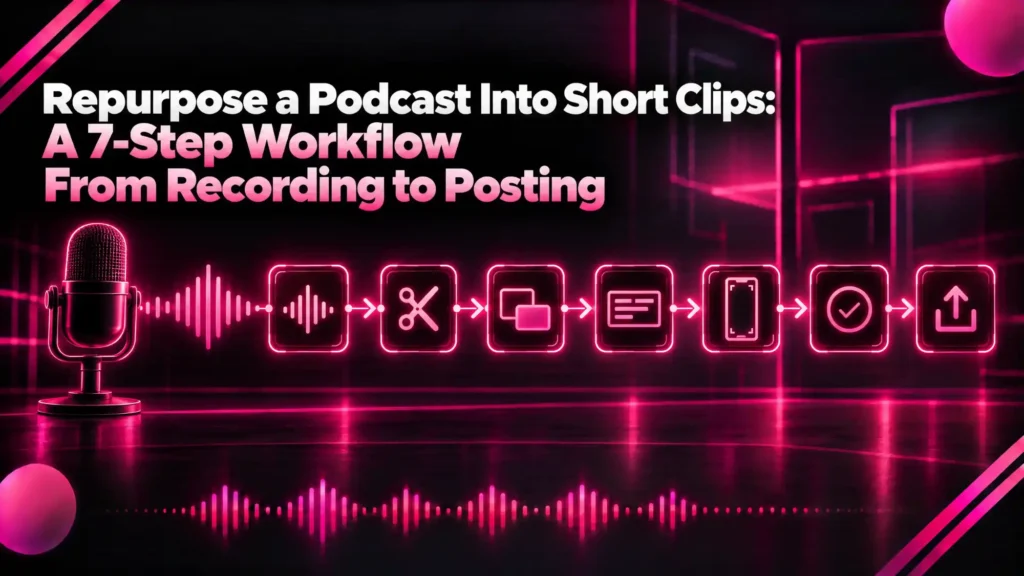
The seven steps to repurpose a podcast into short clips are: record for vertical, start from the original file, find the moments, choose a length per platform, frame the speakers, add captions and a hook, and publish each clip where it belongs.
| Step | What you decide | What goes wrong if you skip it |
|---|---|---|
| 1. Record for vertical | Camera per person, or one wide shot | Two people too close to split, or a face cut in half |
| 2. Use the original file | Your export, not a download | Soft picture after a second round of compression |
| 3. Find the moments | Which ideas stand alone | Clips that start mid-thought |
| 4. Choose the length | Seconds per platform | Clips cut off, not recommended, or not paid |
| 5. Frame the speakers | One speaker, split screen or wide | Framing the listener instead of the speaker |
| 6. Caption and hook | Caption style, title, logo | Silent viewers scroll past |
| 7. Publish | Where each clip lives | Clips mixed into your podcast playlist |
Step 1: Record the episode so it can be clipped
To repurpose a podcast into short clips without fighting the footage, record with one camera on each person, because a separate close-up of each speaker is the easiest footage to turn into vertical podcast clips.
A vertical frame is narrow. From a 16:9 picture it keeps roughly a third of the width, so two people sitting side by side will not both fit unless they sit close, and then they share one small frame.
How each common setup clips:
- One camera per person, cut together. Each shot holds one face, so a crop that follows the speaker works shot by shot.
- One locked-off wide shot of both. The faces sit far apart in one frame, which suits a split screen that stacks them.
- Remote recording on Zoom. The recording layout decides it, as below.
- Solo host. One face, one crop, the simplest case.
For remote shows, Zoom’s guide to recording video layouts describes Speaker View as capturing only the active speaker, switching as people talk, and Gallery View as a grid of everyone at once.
Speaker View behaves like a cut multicam edit: one face at a time. Gallery View behaves like a wide two-shot, with both faces always in frame, which is what a split screen needs.
Leave some headroom above each person and keep the camera still. A frame that already has the face near the centre loses less when it is cropped to 9:16.
Step 2: Start from the original file, not a download
When you repurpose a podcast into short clips, start from the file you exported, because every copy that has been through YouTube or a social platform has already been compressed once.
Cropping to vertical then enlarges that picture. Any softness in a downloaded copy becomes visible when a third of the frame is stretched to fill a phone.
If the original is gone, a download from your own channel works. It is a fallback, not the plan.
Step 3: Find the moments worth clipping
The moments worth keeping when you repurpose a podcast into short clips open with a line that makes sense on its own, deliver one complete idea, and end when that idea ends.
Read the transcript rather than scrubbing the timeline. Strong opening lines stand out on the page, and reading an hour of conversation takes a fraction of an hour.
Conversations produce a few kinds of moment that clip well:
- A direct answer. A question from the host and a clear, confident reply make a complete clip on their own.
- A short story. A beginning, a turn and an ending inside a minute or two.
- A disagreement. Two people pushing back on each other is the moment where a split screen earns its place.
- A specific number or tip. Something a viewer can use or repeat.
Skip anything that leans on earlier context, such as “like I said” or a running joke from the first half. A viewer on a feed has none of that context.
Step 4: Choose a clip length for each platform
When you repurpose a podcast into short clips, choose each clip’s length from the platform’s own rules first and your material second: most podcast clips land under a minute, with room to run longer when the idea needs it.
| Platform | What the platform says | Source |
|---|---|---|
| YouTube Shorts | Square or vertical videos up to three minutes are Shorts | YouTube Help |
| Instagram Reels | Reels of three minutes or less are recommended to unconnected audiences | Instagram for Creators |
| TikTok | Creator Rewards counts only videos of at least one minute | TikTok CRP terms |
| Spotify Clips | 15 to 90 seconds, one clip per episode | Spotify for Creators |
YouTube’s help article on three-minute Shorts sets the upper limit. It also changed a rule on September 24, 2026: a Short over one minute with an active Content ID claim is no longer blocked automatically, but it only becomes eligible for monetisation once the claim is resolved.
Instagram’s creator FAQ says it recommends videos of three minutes or less to people who do not follow you, so a longer reel is unlikely to reach new viewers.
TikTok is the one platform where going over a minute has a direct reason. Its Creator Rewards Program terms define eligible videos as at least one minute long.
Spotify’s Clips help page allows one clip of 15 to 90 seconds per episode, shown on your show page and possibly recommended in Home and podcast feeds.
Beyond those rules, let the idea set the length. A clip should end on the last word of its point, whether that is at 25 seconds or 70.
Step 5: Frame two speakers for a vertical screen
To repurpose a podcast into short clips with two speakers, frame them for vertical in one of three ways: follow whoever is talking, stack both in a split screen, or keep the whole frame on a blurred background.
| Layout | Best for | Where it fails |
|---|---|---|
| Follow the speaker | Multicam edits, Zoom Speaker View, solo hosts | A wide two-shot where it cannot tell who is talking |
| Split screen | Wide two-shots and Gallery View, reactions, debates | People sitting too close, or only one person in shot |
| Blurred background | Three or more people, or shows with slides | Faces end up small in the middle of the screen |
Following the speaker suits most clips, because one face filling the screen is the most watchable picture a phone can show.
A split screen suits the moments where the listener’s reaction is part of the story. The two halves need to show different people, so it only works when the faces sit far enough apart in the original frame.
The mistake to avoid is framing the wrong person. A crop that settles on the host while the guest delivers the best line of the episode wastes the clip.
Step 6: Add captions, a hook and your branding
Every podcast clip needs burned-in captions, a short hook line in the first seconds, and your show’s name or logo placed away from the platform’s buttons.
Captions matter more for podcasts than for most video, because the whole clip is speech. Burned into the picture, they look the same on every platform and do not depend on a viewer switching captions on.
Keep captions and logos inside each platform’s safe zone. Our guide to vertical video safe zones gives the margins for TikTok, Reels and Shorts.
For the hook, name the payoff of the clip, not the episode. “Why we stopped paying for ads” gives a stranger a reason to stay, and “Episode 58 with Sam” does not.
Check the sound too. Guests on remote calls are often quieter than the host, and levelling the audio stops the quiet half of the conversation from getting lost on a phone speaker.
Step 7: Publish each clip where it belongs
When you repurpose a podcast into short clips, publish them as Shorts, Reels and TikToks in their own right, and keep them out of your podcast feed and your YouTube podcast playlist.
YouTube is explicit about this. The same podcast guide says a podcast should contain only full-length episodes, that playlists of clips should not have podcast features turned on, and that Shorts made to support a podcast will not appear in YouTube Music.
Going from podcast to Shorts works best when each clip points home. Link each clip back to the full episode wherever the platform allows it, in the description, a pinned comment or your profile link.
Spread the clips across the week rather than posting them all on release day. One episode can fill several days of short-form posting, which is the whole point of repurposing it.
How to repurpose a podcast into short clips with Klyply
Klyply repurposes a podcast into short clips in one pass: it transcribes a video episode, picks the strongest moments, frames the speakers, adds captions and renders every clip on your own Windows PC.
It suits podcasters who record every week and want a batch of clips from each episode without paying per minute or uploading unreleased episodes to someone else’s servers.
The steps in Klyply
To repurpose a podcast into short clips in Klyply, you make five choices, set once for the whole batch:
- Add the episode. Open the video file from your drive, or paste a link to it.
- Set the basics. Choose 1 to 20 clips, a minimum and maximum length between 5 seconds and 3 minutes, and 9:16 for Shorts, Reels and TikTok.
- Pick a framing. Follow the speaker for one face at a time, or Split for two speakers stacked one above the other.
- Choose captions and a hook. Pick one of 27 caption styles, and let Klyply write a hook from each clip’s opening line or type one for the batch.
- Add your logo and render. The clips are saved as MP4 files on your PC, ready to post.
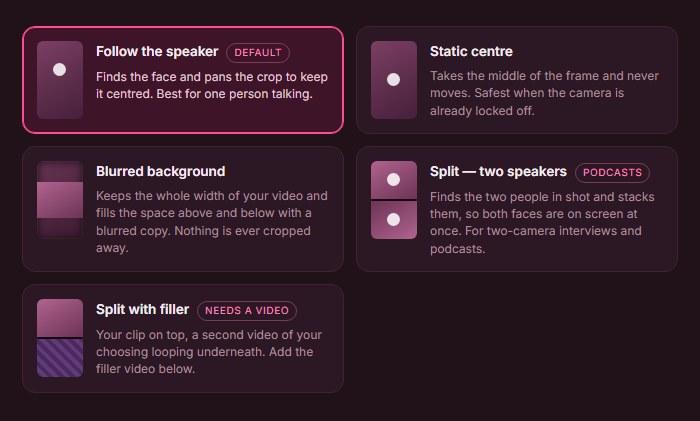
How Klyply frames two speakers
Klyply decides who is speaking from the picture, by measuring how much each person’s mouth moves, shot by shot.
It works per shot because podcasts on YouTube are rarely one locked-off camera. A close-up of the host, a wide of both and a close-up of the guest each get their own decision.
Head movement is subtracted from the score, because a nod moves the whole face and speech mostly moves the mouth. That keeps an enthusiastic listener from stealing the frame.
The two podcast framings behave differently:
- Follow the speaker never splits the screen. When two people are in shot and it cannot tell who has the floor, it frames both in one crop rather than guessing.
- Split stacks the two people. If they sit too close together for the halves to differ, or only one person is in shot, it falls back to a single frame instead of showing the same picture twice.
Speaker detection uses the picture rather than voice recognition because telling voices apart needs an extra model download, and Klyply is built to run offline.
How Klyply picks the moments
Klyply transcribes the whole episode on your PC, then builds every candidate clip from whole sentences, so a clip never starts or stops mid-word.
Each candidate is scored on its opening line, emotional and concrete language, vocal energy, pace, and whether its last sentence finishes the thought. Filler words count against it.
By default it looks for clips of 15 to 60 seconds, and you can widen that to three minutes for longer answers.
A voice boost setting, on by default, evens out loudness so a quiet guest is not lost next to a louder host.
What Klyply costs and where it falls short
Klyply costs $29 for three months or $179 once for a Lifetime licence, with a 12-month term in between, and there is no limit on episodes or clips.
It runs on Windows 10 and 11 only, and rendering uses your own CPU, so a long episode takes longer on an older machine. There is no free plan.
It clips video, not MP3s. An audio-only show needs a video version first, such as the static-art video YouTube builds from your RSS feed, and those clips will be captions over still art rather than faces.
It does not post to TikTok, Instagram or YouTube for you. Publishing stays a manual step, which also means nothing leaves your PC until you choose to upload it.
If keeping unreleased episodes private is the main reason you are looking, our guide to offline video clipping software compares the tools that process footage locally.
Manual editing or an AI clipper for podcast clips?
To repurpose a podcast into short clips, manual editing gives you the most control over each one, and an AI clipper gives you a full batch from every episode in the time it takes to review it.
| Manual editing | AI clipper such as Klyply | |
|---|---|---|
| Finding moments | You watch or read the whole episode | Scored for you from the transcript |
| Vertical framing | Keyframed by hand | Follow the speaker or split, automatic |
| Captions | Styled by hand or with a plugin | 27 styles, burned in |
| Creative control | Complete: B-roll, zooms, sound design | Set per batch, not per frame |
| Cost | Your time, or an editor’s hourly rate | Klyply from $29 for three months |
Manual editing is still the better choice for a flagship clip you will promote heavily, or for footage that needs B-roll and graphics to make sense.
Many shows mix the two: an AI clipper for the weekly batch, and a hand edit for the one moment worth extra effort. If a monthly bill is what puts you off hosted clippers, our comparison of one-time purchase clipping software covers the options without one.
Common mistakes when turning a podcast into clips
The most common mistake when you repurpose a podcast into short clips is starting a clip where the transcript is convenient rather than where the idea starts.
- Starting mid-thought. “And that’s why” loses a viewer who has no idea what “that” was.
- Posting horizontal clips. A 16:9 clip plays as a thin band with bars above and below on a vertical feed.
- Framing the listener. A crop that sits on the wrong person throws away the best line.
- Clips in the podcast playlist. YouTube wants only full episodes there.
- Music you do not have rights to. A claim holds back monetisation on longer Shorts until it is resolved.
- Skipping the guest. Clips a guest has not agreed to can cost you the relationship, and the guest’s own audience.
- Posting everything on release day. The clips have a longer life spread over the week.
Podcast clips FAQs
How many clips can you get from one podcast episode?
The number of clips depends on the episode, not its length: a clip needs a moment that stands alone, and some hours of conversation hold more of those than others.
Klyply renders between 1 and 20 per run. Asking for more than the episode has good moments only lowers the average.
How long should podcast clips be?
Podcast clips should be as long as the idea and within each platform’s rules: up to three minutes for Shorts and for Reels shown to new audiences, and 15 to 90 seconds for Spotify Clips.
Can you make podcast clips from an audio-only podcast?
Yes, you can make podcast clips from an audio-only show by pairing the audio with show art, a waveform and captions, usually called an audiogram.
Clips with faces give a viewer more to watch, so filming future episodes is worth considering if clips matter to your growth.
Should podcast clips use a split screen?
Podcast clips should use a split screen when both people matter to the moment, such as a debate or a reaction, and a single speaker the rest of the time.
Do I need my guest’s permission to post clips?
Asking your guest’s permission for clips before recording is good practice, and it is simplest to include it in the booking email or guest agreement.
Can I make podcast clips for TikTok with Klyply?
Yes, Klyply makes podcast clips for TikTok at 9:16 with burned-in captions. You upload them to TikTok yourself, since Klyply does not post for you.
Is it worth it to repurpose a podcast into short clips?
It is worth it to repurpose a podcast into short clips if you already record video, because the clips come from an episode you have already made.
The cost is the time to pick, frame and caption them. That is the part an AI clipper shortens, and the part a hand edit spends most of its hours on.
What is the fastest way to go from podcast to Shorts?
The fastest way to go from podcast to Shorts is an AI clipper that transcribes the episode, picks the moments and renders them vertical with captions in one run.
For a single clip from your own YouTube upload, YouTube Studio’s built-in Shorts tool is quicker still, one segment at a time.
Should podcast clips go in my YouTube podcast playlist?
No, podcast clips should not go in your YouTube podcast playlist. YouTube says a podcast should contain only full-length episodes, so post clips as Shorts or in a separate playlist.
Final thoughts
To repurpose a podcast into short clips well, most of the decisions happen before editing: how you record, what your guests agreed to, and how long each platform wants the clip to be.
For a solo host clipping one or two moments a week, a free editor and a transcript are enough.
For a two-person show that wants a batch of clips from every episode, Klyply finds the moments, follows the speaker or splits the screen, and renders captioned vertical podcast clips on your own PC.
For a flagship clip that needs B-roll and graphics, edit it by hand. That one is worth the extra hour.
If your source is a long YouTube video rather than a podcast, our guide to turning a YouTube video into Shorts covers YouTube’s own tools as well.