Split Screen Podcast Clips: How Two Speakers Get Stacked, and When Not to Split
How a vertical split screen is built from a podcast recording, how far apart the speakers must sit, why some splits look soft or repeat the same picture, and where captions go.
Split screen podcast clips are vertical videos that stack two speakers, one above the other, so both faces stay on screen for the whole clip.
This guide is for podcast hosts and editors deciding whether to stack their speakers in a split screen, and wondering why some split screens look sharp while others show the same person twice or a blurry face.
It covers how a split screen is built from a landscape recording, the spacing and resolution it needs, when one speaker is the better choice, where captions go, and the other kind of split screen, with filler video underneath.
The short answer: a split screen works when the two people sit far apart in a sharp recording and both matter to the moment. When they sit close together, or only one is talking, a single crop looks better. Klyply’s Split framing checks the spacing for every clip and falls back to one shot when two halves would show the same picture.
Key takeaways
- Each half of a vertical split screen is 1080 by 960 pixels at 1080p, and each half is cropped around one person in the original recording.
- If the two faces sit closer than about a sixth of the frame width, both crops contain both people, and the split shows the same picture twice.
- Each half is cut from a small part of the frame, so a 4K recording gives sharp panes and a low-resolution one gives soft faces.
- A split screen with filler video underneath, such as gameplay, is a different format, and YouTube’s reused content policy applies to footage that is not yours.
- Klyply builds split screen podcast clips on your own Windows PC, and refuses a split that would repeat the same picture.
What is a split screen podcast clip?
A split screen podcast clip divides the vertical frame into a top half and a bottom half, each showing one speaker, cropped from a recording where both appear.
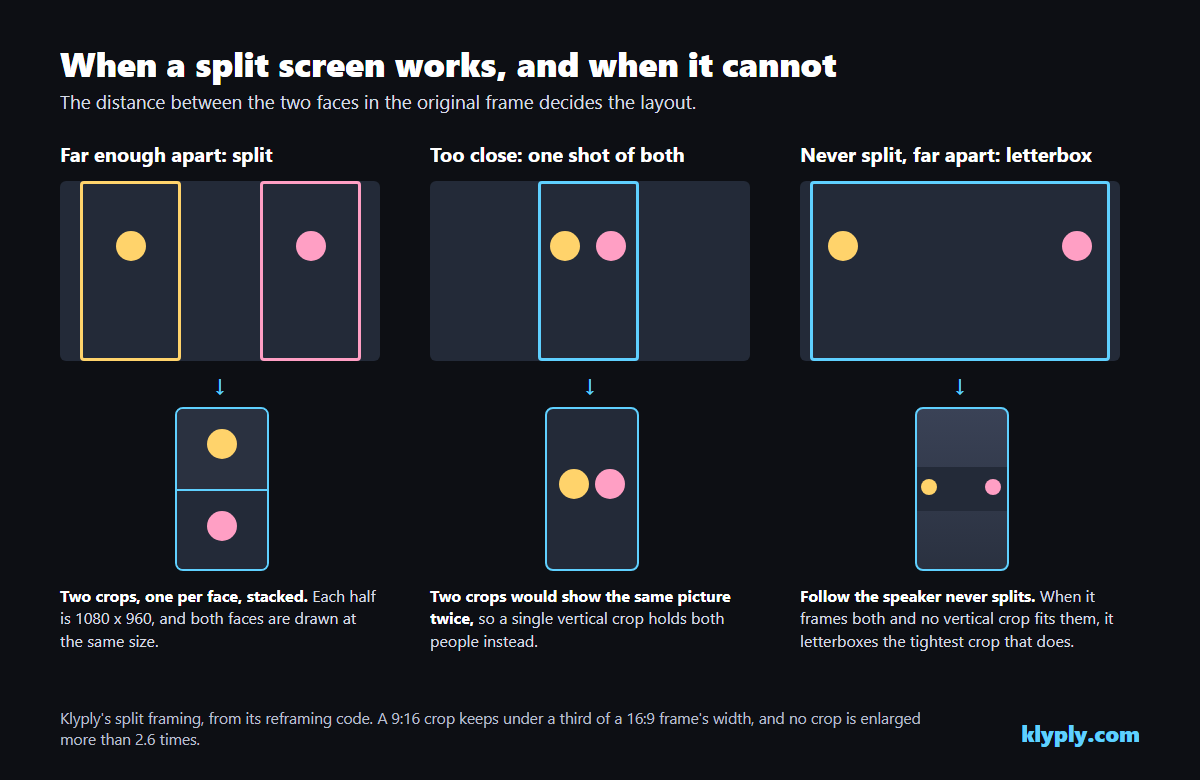
It solves a specific problem. A 9:16 crop of a 16:9 recording keeps less than a third of the frame’s width, so it can show one person well or two people badly. Stacking two crops shows both, each at a useful size.
For the full process of turning an episode into clips, from recording to posting, see our workflow for repurposing a podcast into short clips. This guide covers the split screen layout itself.
How a split screen is built from a landscape recording
A split screen video is built by taking two separate crops from the same landscape frame, one centred on each person, and stacking them into one vertical frame.
- Find both faces in the recording.
- Choose a crop width for each half, the same for both, so the two people appear at the same size.
- Centre one crop on each face, with the eyeline a little above the middle of the pane.
- Scale each crop to half the output frame, 1080 by 960 pixels for a 1080 by 1920 clip.
- Stack the two halves and add captions.
Using the same crop width for both halves matters more than it sounds. A split where one head is twice the size of the other looks like a mistake, even when each half is framed well on its own.
How far apart the speakers need to be
For split screen podcast clips to show two different pictures, the speakers need to sit far enough apart that each crop holds only one of them, roughly more than a sixth of the frame width between their faces.
Closer than that, each crop is wide enough to catch both people. The top half and the bottom half become the same moment cropped twice, and the viewer sees two near-identical pictures stacked on each other.
Faces that close together are also the easiest to frame another way. A single vertical crop can hold both of them, which is a better picture than a split that repeats itself.
Which recordings split well
The recordings that make good split screen podcast clips are the ones where two people sit apart in one frame: a wide two-shot across a table, or a two-person video call recorded in gallery view.
| Recording | Splits well? | Why |
|---|---|---|
| Wide two-shot, people across a table | Yes | Both faces in one frame, far apart |
| Two-person call in gallery view | Yes | Two tiles side by side, one face in each |
| Two people sitting shoulder to shoulder | No | Faces too close; one crop holds both |
| Edited multicam, one face at a time | No | Only one person is ever in the frame |
| Call recorded in speaker view | No | The recording shows only the active speaker |
| Separate camera file for each person | After combining | Put the two files side by side in one video first |
Zoom’s guide to recording video layouts explains the difference: speaker view records only the active speaker, while gallery view records the grid of everyone’s video. For a remote podcast you want to split, record gallery view.
Resolution: why some split screens look soft
Split screen podcast clips look soft when each half is enlarged from too few pixels, because each pane is cut from a small part of the original frame and scaled up to fill half the screen.
From a 4K recording, a crop around one person still has plenty of pixels. From a 1080p wide shot where each person is small, the crop has to be enlarged a lot, and faces start to look smeared.
- Record in 4K if the camera can, even if you publish the full episode in 1080p.
- Frame tighter. People who fill more of the frame need less enlarging.
- Clip from the original file. A copy downloaded back from YouTube has already been compressed.
- Accept a looser crop. Slightly more room around each face beats a sharp-looking crop of a blur.
Klyply never enlarges a crop more than 2.6 times, for this reason. Past that, it keeps the shot looser rather than zooming into mush.
When to use a split screen, and when not to
Use split screen podcast clips when both people matter to the moment, and a single speaker when one person is doing all the talking.
Moments that suit a split screen
- Reactions. The listener’s face as the guest says something surprising is half the clip.
- Debates. Two people disagreeing need to be seen together.
- Fast back-and-forth. When the speaker changes every few seconds, a split avoids constant cutting.
- Interviews where the question matters. The host asking and the guest answering, both in view.
Moments that do not
- A long answer. Half the screen shows someone nodding for a minute.
- A solo story. One face at full height is more intimate than half a screen.
- Faces that sit close together. The split cannot separate them.
One option that does not split at all is a crop that follows whoever is talking. It suits the long answers and stories above, and it is how most single-speaker podcast clips are framed.
Where captions go in a split screen
In split screen podcast clips, captions usually sit on or near the seam between the two halves, where they cover neither face.
The seam is halfway up the frame. Captions placed just below it sit under the top speaker’s chin and above the bottom speaker’s head, inside the middle band that no app covers with buttons.
Low captions are a worse choice here than in a single-speaker clip. They land on the bottom speaker’s face, and inside the area Reels and TikTok reserve for their own text. Our guide to vertical video safe zones has the measurements for each app.
The other split screen: a speaker over filler video
The second kind of split screen video puts the speaker in the top half and unrelated filler footage, such as gameplay or a satisfying loop, in the bottom half.
It is common in clips posted to TikTok and Shorts. The filler keeps the eye busy while the speaker talks. Whether it suits a podcast depends on your audience, and it is a style choice rather than a framing fix.
Filler footage and the reused content rules
Filler footage should be footage you own or have the rights to, because the platforms judge what is original in a clip.
YouTube’s channel monetization policies describe reused content as repurposing content already on YouTube or elsewhere without significant original commentary, substantive modifications, or educational or entertainment value. The policy applies to the whole channel, and copyright rules apply separately.
TikTok’s Creator Rewards Program terms make the creator responsible for the ownership and originality of each eligible video, including third parties’ rights. Someone else’s gameplay under your podcast is their footage, not yours.
Length and shape for split screen clips
Split screen podcast clips follow the same platform limits as any vertical clip: up to three minutes for YouTube Shorts, and three minutes or less for Reels that should reach new viewers.
YouTube’s help page on three-minute Shorts treats square or vertical videos up to three minutes as Shorts. Instagram’s help page on recording a reel allows up to 20 minutes but says reels over 3 minutes will not be recommended to new audiences.
A split screen only makes sense in a tall frame. In a square or 16:9 clip there is room to show both people side by side, so stacking them is not needed.
How to make split screen podcast clips with Klyply
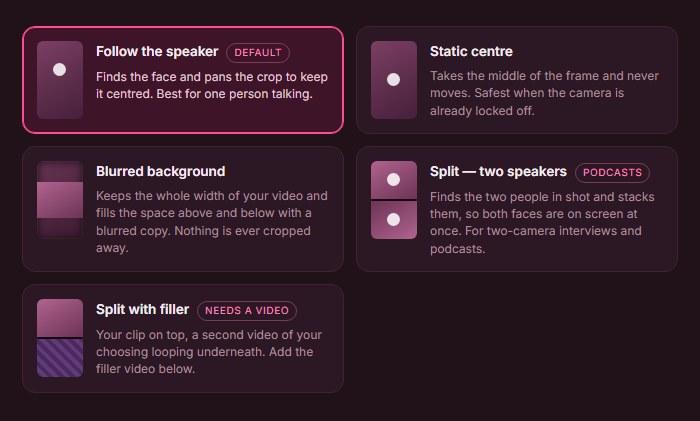
Klyply makes split screen podcast clips automatically: choose Split on the framing step, and it finds both speakers, crops each one and stacks them in every clip, on your own Windows PC.
What Klyply’s Split framing does
- Same size faces. Both halves use the same crop width, so neither speaker looks larger.
- No repeated picture. If the two crops would share too much of the frame, it uses one crop holding both people instead.
- One person, one crop. If only one person is in shot, it frames that person rather than splitting.
- No over-enlarging. No crop is scaled up more than 2.6 times.
- Layout per shot. It lays out each clip as a timeline, so a clip that cuts from a two-shot to a close-up can change layout at the cut.
Follow the speaker, the default framing, never splits. When it cannot tell who is talking in a two-shot, it frames both people in one crop rather than guessing, and if they will not fit, it letterboxes the tightest crop that holds them.
For the filler style, choose Split with filler and add your own video for the bottom half. It loops to fill each clip.
Captions in Klyply split screens
For captions on the seam, set Caption position to centre, which places captions 44% of the height from the bottom, just below the halfway line.
Most of the 27 caption styles default to the lower position, 20% from the bottom, which lands on the bottom speaker’s face in a split.
What Klyply costs and where it falls short
Klyply costs $29 for 3 months or $179 for a Lifetime licence, with a 12-month term in between, and renders on Windows 10 and 11 with nothing uploaded.
- It takes one video file per run, so separate camera files for each person need combining side by side first.
- The framing is one choice per run. You cannot pick split for one clip and a single speaker for the next in the same batch.
- You cannot choose which speaker goes on top.
- It renders on your PC’s processor, so a long episode takes longer on an older computer.
Common split screen mistakes
Most bad split screen podcast clips come from four mistakes, and three of them are decided when the episode is recorded.
- Seating the guests too close. Shoulder to shoulder cannot be split. Leave space between chairs.
- Recording in speaker view. A call recorded with only the active speaker has no second face to stack.
- A low-resolution wide shot. Each half is a small crop, enlarged. Record in 4K, or frame tighter.
- Captions on the bottom face. Move them up to the seam.
Split screen podcast clips FAQs
How do you make a split screen video for TikTok?
To make a split screen TikTok from a podcast, crop each speaker from the recording, scale each crop to half of a 1080 by 1920 frame, and stack them. A clipper with a split framing does all three for you.
Why does my split screen show the same person twice?
A split screen shows the same picture twice when the two people sit too close together, so each crop contains both of them. Use one crop holding both people instead.
Can you split screen a remote podcast?
Yes, you can split screen a remote podcast if it was recorded in gallery view, with both people’s video side by side. A speaker view recording shows only one person at a time.
Which speaker should go on top?
Either speaker can go on top, but keep the same order across a series so viewers learn where to look. In an interview, putting the guest on top keeps the person doing most of the talking next to the hook title.
Is a split screen better than following the speaker?
Neither is always better. A split screen suits reactions and debates; following the speaker suits long answers and stories, where one face at full height holds attention.
Can I use gameplay footage under my podcast clip?
Only use gameplay footage you own or have rights to. YouTube’s reused content policy and TikTok’s originality terms both put the responsibility for third-party footage on you.
Final thoughts
Good split screen podcast clips are decided at the recording: two people sitting apart, a sharp camera, or a call recorded in gallery view.
When those hold, stack both speakers for reactions and debates, put the captions on the seam, and switch to a single speaker for the long answers.
For a batch of clips from every episode, Klyply builds the split for you, keeps both faces the same size, and falls back to one shot whenever two halves would repeat the same picture.
When the faces sit too close, take the hint. One clean shot of both people beats a split that shows them twice.