Burn Captions Into Video: 4 Best Ways to Hardcode Subtitles That Stay Readable
Four ways to burn captions into video, from an AI clipper to FFmpeg, when a caption file is better, and the readability rules that keep burned-in captions legible on a phone.
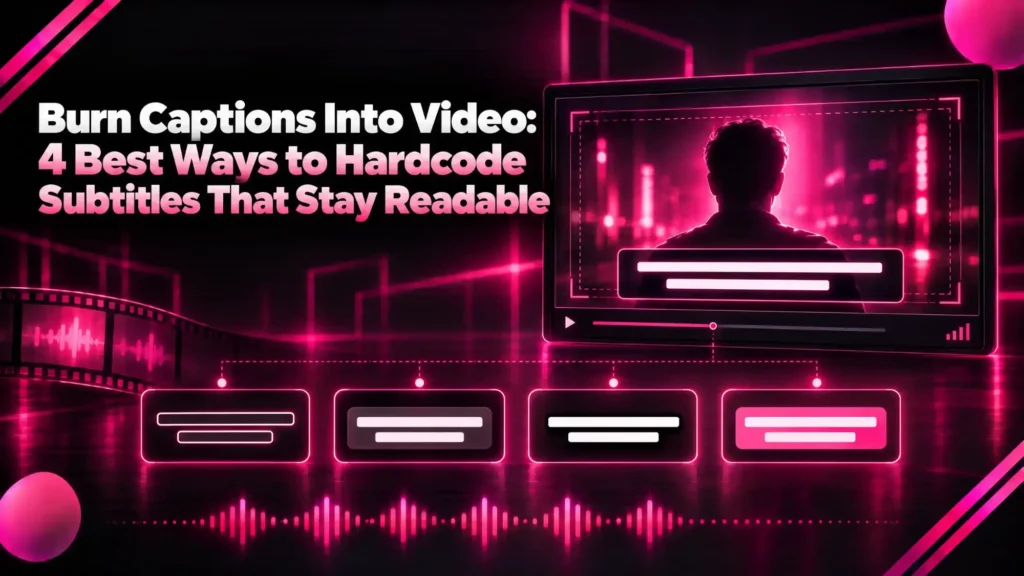
To burn captions into video is to render the words into the picture itself, so they show on every player and platform and nobody can switch them off.
This guide is for creators and editors who want captions on a short clip that survive being posted to TikTok, Reels and Shorts, and who are deciding which tool should do the burning.
It covers what burned-in captions are, when a caption file is the better choice, four ways to burn captions into video, and the readability rules that decide whether anyone can read them on a phone.
The short answer: burn captions in for short-form clips and keep a caption file for long YouTube videos. For a single clip, your editor’s export setting is enough. For a batch of clips from a long recording, an AI clipper such as Klyply transcribes, styles and burns in every clip in one pass, on your own Windows PC.
Key takeaways
- Burned-in captions are open captions: part of the image, always visible, and impossible to edit after export. A caption file is closed captions, which the viewer can turn off.
- The W3C lists open captions as a sufficient way to meet the WCAG captions requirement, so burning in does not cost you accessibility.
- The four routes are an AI clipper, your video editor’s export, FFmpeg’s subtitles or ass filter, and the captions tool inside the platform’s own app.
- Short-form captions need far shorter lines than TV subtitles: a few words per line, not the 42 characters Netflix allows.
- Klyply burns one of 27 animated caption styles into every clip it cuts, with transcription and rendering on your PC and nothing uploaded.
What does it mean to burn captions into a video?
Burning captions into a video means drawing the caption text onto every frame during export, so the words become pixels in the video rather than a separate text track.
The result is often called hardcoded subtitles, hardsubs or burned-in captions. All three mean the same thing: one video file with the words already in it.
Open captions vs closed captions
Open captions are always on screen, and closed captions can be turned on and off by the viewer.
The W3C’s guidance on WCAG success criterion 1.2.2 draws the same line: closed captions can be switched on and off with some players, while open captions are any captions that cannot be turned off.
Burned-in captions are open captions. A caption file uploaded next to the video, such as an SRT, is the usual way to deliver closed captions.
Captions vs subtitles
Captions carry the speech plus the sounds a viewer needs to follow along, and subtitles usually carry the speech only.
The W3C defines captions as covering both speech and non-speech audio, such as sound effects, music, laughter and who is speaking.
Most short-form “captions” are really animated subtitles, because they show only the words being spoken. That is fine for a talking-head clip. If a sound matters to the meaning, write it in.
Do burned-in captions count for accessibility?
Yes, burned-in captions can meet the accessibility requirement, as long as they are accurate and in sync.
The W3C lists providing open, always visible, captions among its sufficient techniques for criterion 1.2.2. The quality bar is the same for both kinds: a caption with the wrong word fails the viewer who relies on it.
Burned-in captions or a caption file: which do you need?
Burn captions into video when the clip will be cross-posted to short-form apps, and ship a caption file when viewers should be able to turn captions off, switch language, or when you may need to fix a word later.
| Burned-in (open) captions | Caption file (closed captions) | |
|---|---|---|
| Viewer can turn them off | No | Yes, on players that support it |
| Shows on every app and player | Yes, they are part of the picture | Only where the platform accepts the file |
| Custom fonts, colours, animation | Anything your tool can draw | Limited to what the player draws |
| Edit a word after export | Re-export the video | Edit the text file |
| Several languages | One per video file | One file per language, same video |
| Best for | TikTok, Reels, Shorts, ads, clips shared in chats | Long YouTube videos, courses, broadcast |
When burning captions in is the right call
It is right to burn captions into video for short clips, because the same file is usually posted to three or four apps and only burned-in captions look the same on all of them.
It is also the only way to get the styled, word-by-word captions that short-form viewers expect. A platform’s caption track draws plain text in its own font.
And it survives the places captions files do not travel: a clip downloaded and reposted, sent in a group chat, or embedded somewhere with no caption support.
When a caption file is better
A caption file is better for long-form video where viewers may want the text off, want another language, or want to search the transcript.
YouTube’s help page on adding subtitles and captions is built around uploading a file, with or without timing, to a video that already exists. Long YouTube videos and courses are where that route earns its keep.
You can do both. Burn captions into the vertical clips and upload a caption file for the full episode they came from.
How to burn captions into video: 4 ways
There are four practical ways to burn captions into video: an AI clipper that captions as it cuts, a video editor’s export setting, the FFmpeg command line, and the captions tool inside a platform’s app.
| Method | Best for | Transcribes for you | Styling | Effort per clip |
|---|---|---|---|---|
| AI clipper | Many clips from one long recording | Yes | Presets, animated | Lowest |
| Video editor export | One edited video | Depends on the editor | Full control | Medium |
| FFmpeg | Scripts and existing caption files | No | Whatever the file says | Low once scripted |
| Platform app | One clip posted to one app | Yes | The app’s own options | Medium, repeated per app |
Method 1: Use an AI clipper that captions as it cuts
An AI clipper is the fastest way to burn captions into video when you start from a long recording, because finding the clips, transcribing them and burning the captions in happen in one run.
You choose a caption style once, the clipper burns captions into video for the whole batch, and every clip in the batch comes out with the words already in the picture. There is no caption file to manage and no second export.
The trade-off is control. You pick from the tool’s styles and settings rather than placing each line by hand, and most clippers run in the cloud, which means uploading the recording. Klyply is the exception covered in detail below: it runs on your PC.
Method 2: Burn captions into video from your editor
Desktop editors such as Premiere and Final Cut Pro can burn captions into video at export, using the caption track already on your timeline.
In Premiere, Adobe’s guide to exporting caption tracks says to open the Export workspace from the header bar and choose burn-in captions. The captions in the active track are rendered directly into the video file, whatever their format.
The same page lists the alternatives: embedding CEA-608 or 708 captions in the file, or a sidecar file such as .srt, .scc or .stl for closed captions.
In Final Cut Pro, Apple’s introduction to captions says the app can burn in captions permanently, or convert closed captions to titles you can style like any other text.
An editor gives you the most control over a single video. It is also the slowest route for ten clips, because each one needs its own caption track checked and its own export.
Method 3: Burn subtitles with FFmpeg
To burn captions into video with FFmpeg, use its subtitles filter for SRT and other formats, or its ass filter for Advanced SubStation Alpha files. It takes a single command.
For an SRT file: ffmpeg -i input.mp4 -vf "subtitles=captions.srt" -c:a copy output.mp4
For an ASS file: ffmpeg -i input.mp4 -vf "ass=captions.ass" -c:a copy output.mp4
The -c:a copy part keeps the audio untouched. The video has to be re-encoded, because the captions are being drawn into every frame, so choose your quality settings as you would for any export.
The FFmpeg filter documentation says both filters draw with the libass library, so your FFmpeg build needs --enable-libass. The ass filter is the same as subtitles but limited to ASS files.
Styling an SRT file in FFmpeg
An SRT file holds timing and text but no styling, so FFmpeg’s force_style option sets the look, using ASS style fields such as FontName, FontSize and Outline.
For example: subtitles=captions.srt:force_style='FontName=Arial Black,Outline=3'. Test the size on one frame before rendering a batch, because an SRT has no frame size of its own and the text is scaled to the video.
For animated, word-by-word captions you need an ASS file. ASS can colour the spoken word, scale it, fade lines in and place them anywhere, which SRT cannot express.
FFmpeg on Windows: the path problem
On Windows, run the command from the folder that holds the caption file and pass the bare filename, because a full path breaks the filter.
Inside a filter, the colon after a drive letter is read as the separator between options, and backslashes need escaping. Klyply’s own renderer runs FFmpeg from the caption file’s folder for exactly this reason.
Two more things trip people up. The font named in the file must be installed, or libass quietly substitutes another one. And FFmpeg only draws captions; it cannot write them, so you still need a transcript with timings from somewhere else.
Method 4: Add captions inside TikTok, Reels or YouTube
Each platform’s app can caption a video for you, but those captions belong to that app and do not travel with the file to the next one.
TikTok’s accessibility help page describes two kinds. Auto-generated captions are created for videos you upload, and you can edit or remove them. Creator captions are transcribed when you tap Captions while editing, and you can change their font style and colour.
YouTube creates automatic captions too, and warns that their quality may vary with pronunciation, accents and background noise. It says creators should always review them.
In-app captions are a good fit for a clip made for one platform. If the same clip goes to three apps, you caption it three times and get three different looks.
What about online subtitle burners?
Online subtitle burners work, but most of them need you to upload the video to someone else’s server first.
That is fine for a public clip. It is a problem for client work under NDA, an unreleased episode or internal footage, which is the case our guide to offline video clipping software covers.
How to make burned-in captions readable on a phone
When you burn captions into video for a phone screen, make them short, high in contrast, placed clear of the app’s buttons and on screen long enough to read. Because they cannot be fixed after export, get these right before you render.
Keep lines to a few words
Short-form captions should show a few words at a time, far fewer than a TV subtitle.
Netflix’s English timed text style guide allows 42 characters per line and two lines, at up to 20 characters per second for adult programmes. That is written for a wide screen watched from a sofa.
A vertical clip is narrow and the text is large, so the budget shrinks. Klyply’s caption engine caps a line at 22 characters and 1.9 seconds, with three words per line by default and between one and six depending on the style.
Netflix’s line-break advice still applies when a caption does wrap: break after punctuation or before a conjunction, and do not split an adjective from its noun or a first name from a last name.
Use contrast that holds on any background
Captions stay readable on any footage when the letters have a dark outline, a drop shadow or a solid box behind them.
White text with no outline disappears the moment someone walks past a window. A thick stroke is the usual short-form choice; a box suits busy or bright footage best.
On very bright footage, a soft dark gradient behind the caption area helps more than a heavier stroke, because it darkens the picture rather than fattening the letters.
Place captions clear of the platform’s buttons
Burned-in captions belong in the middle band of a vertical frame, roughly 35% to 55% of the height measured from the bottom, where no app draws its own buttons or text.
Low captions are a television habit. On a phone, text near the bottom sits under the post caption, username and call to action. Our reference on vertical video safe zones for TikTok, Reels and Shorts has the measurements for each app.
Highlight the spoken word
Colouring or enlarging the word being spoken keeps the viewer’s eye moving with the speech, which is why word-by-word captions became the short-form default.
Use one highlight colour and keep it consistent across a channel. If every word is a different colour, none of them stands out.
Check the transcript before you burn it in
Check the words before you burn captions into video, because a burned-in mistake can only be fixed by exporting the video again.
Names, brand names and jargon are where automatic transcription fails most often. A misspelled guest name in a burned-in caption is permanent on every repost.
How to burn captions into video with Klyply
With Klyply, you burn captions into video as part of cutting the clips: it transcribes the recording on your PC, picks the moments, and renders every clip with your chosen caption style already in the picture.
It is a Windows 10 and 11 app. The video is never uploaded, and there are no credits or minutes to run out of.
The steps in Klyply
To burn captions into video in Klyply, you set one step of a seven-step setup you configure once per batch.
- Paste a video link or choose a file, and set how many clips you want (1 to 20) and how long each should be.
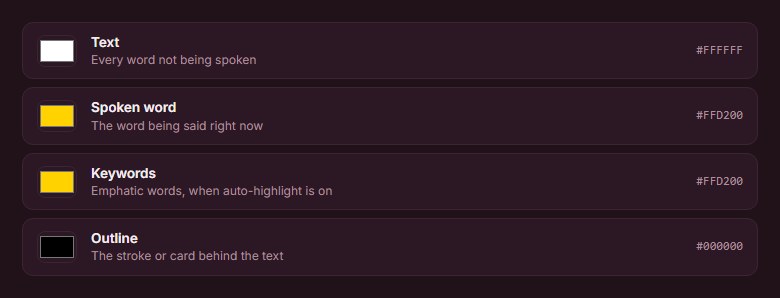
- On Your brand, set the four caption colours and the font, or leave the style’s own.
- On Pick a style, choose one of the 27 caption styles, then adjust position, size, case, transition and keyword highlighting.
- Add a hook title, choose the framing, add your logo and pick the add-ons.
- Start the render. Each finished clip comes out with the captions burned in, ready to post.
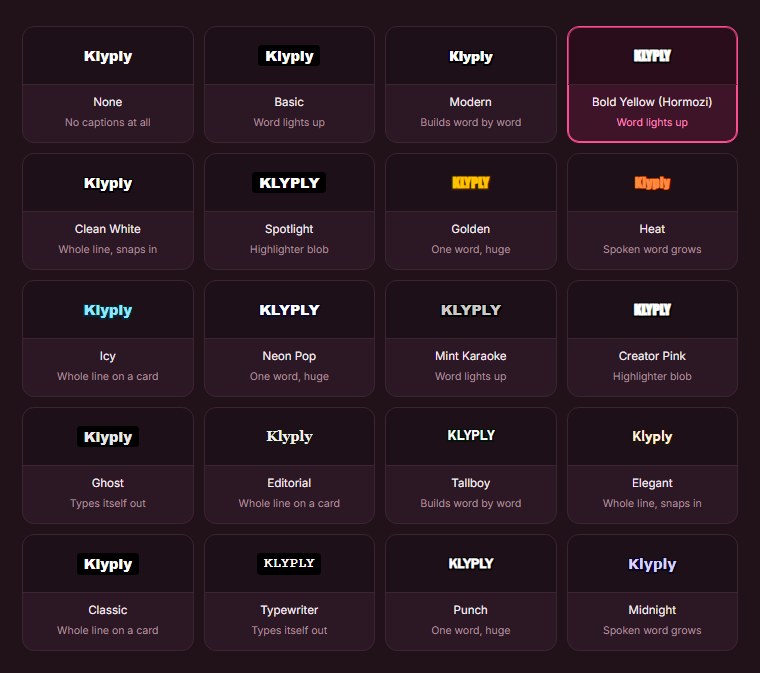
27 caption styles that behave differently
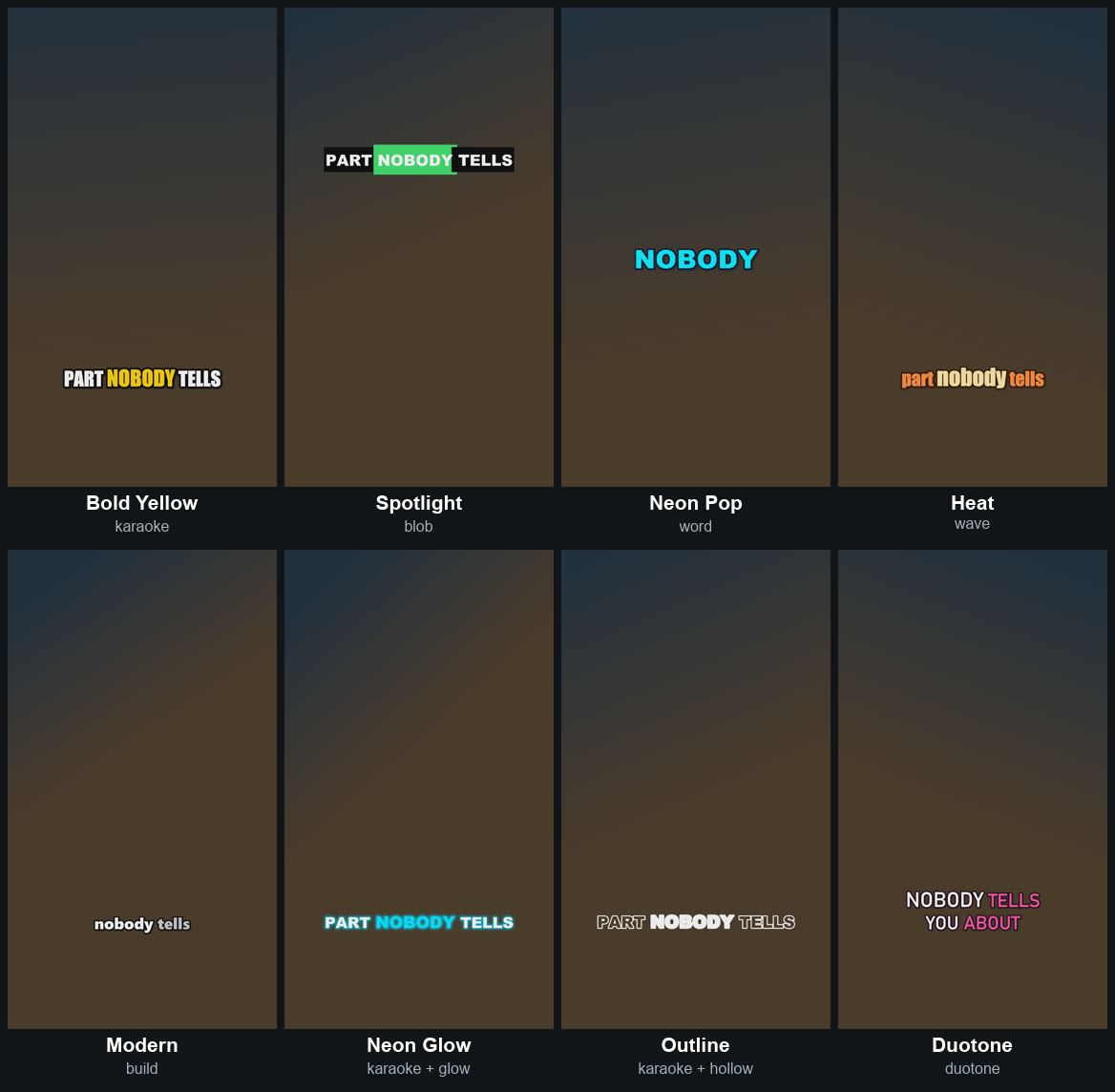
Klyply’s 27 caption styles differ in how they move, not just in their font, across ten behaviours.
- Karaoke: a short line where the spoken word changes colour as it is said.
- Build: the line assembles word by word, with the newest word lit.
- Word: one large word at a time, punched in.
- Blob: the spoken word wears a thick coloured highlight.
- Flash: the whole line at once, snapping down to size.
- Wave: the spoken word lifts and grows.
- Type: the line typed out word by word, with no colour change.
- Duotone: two alternating colours, with the spoken word swelling.
- Shake: the spoken word wobbles as it lands.
- Card: the whole line fades in together and holds.
Some styles add a glow on the stroke or an outline-only hollow letter on top of their behaviour. The frames below were rendered by Klyply’s own caption engine on a plain background, all at the same moment of the same sentence.
What you can change in each style
Every style can be adjusted without losing its behaviour, and a reset button puts the style’s own colours back.
- Font: 13 typefaces that ship with Windows, so a caption never falls back to a different font on your machine.
- Colours: text, spoken word, keywords and outline, set separately.
- Outline: none, a stroke, a drop shadow or a solid box behind the line.
- Size and case: a size slider, and upper, lower, title or original case.
- Position: lower, centre or upper. Most styles default to lower, which sits 20% of the height from the bottom. For Reels, choose centre, which places the captions at 44%, inside the middle band.
- Transition: none, fade or bounce for each new line.
- Auto-highlight keywords: colours emphatic words and numbers even when they are not being spoken.
- Background overlay: a soft dark gradient from the bottom, top or a side, under the captions but over the footage.
How Klyply transcribes and renders the captions
Klyply transcribes speech on your PC with faster-whisper, an open-source speech recognition engine, and records a start and end time for every word.
You choose the transcription model: Tiny, Base, Small (recommended), Medium for accents and noisy audio, or Large v3 for the most accurate result. Each model downloads once, the first time you use it. Your video stays on the PC.
Those word timings drive the animation. Each clip then goes through one FFmpeg pass that layers the reframed footage, the optional background overlay, the captions and your logo, in that order, so a caption never cuts across the logo.
Single-word styles are scaled to fit. A long word such as ENTREPRENEURSHIP is sized to fill at most 88% of the frame width, so its ends are never cut off.
What Klyply costs and where it falls short
Klyply costs $29 for 3 months or $179 for a Lifetime licence, with a 12-month term in between, and there are no per-minute charges on any of them.
A fixed term starts when you activate the licence, not when you buy it. You can get a refund within 14 days of purchase as long as the key has not been activated.
It has honest limits for captioning:
- There is no transcript editor. If a word is misheard, the fix is a larger transcription model and another render, not a typed correction.
- Captions are burned in only. Klyply does not export an SRT or other caption file.
- It runs on Windows 10 and 11 only, and renders on your CPU, so a long video takes longer on an older machine.
- Each render produces one aspect ratio: 9:16, 4:5, 1:1 or 16:9.
- There is no gradient-fill caption style, because the subtitle format it uses cannot draw a gradient across each letter.
If you need to correct every word by hand, caption in an editor and burn in from there. If you want captioned clips from a long recording without uploading it, Klyply does that in one pass.
Common mistakes when you burn captions into video
Most burned-in caption problems come from five mistakes, and every one of them is cheaper to prevent than to fix with a re-export.
Doubling up with the platform’s auto captions
If your clip already has burned-in captions, turn off or remove the platform’s automatic captions, or viewers may see the same words twice.
TikTok generates captions for uploaded videos automatically and lets you remove them from the video afterwards. Check each post once it is live.
Burning in before the edit is final
Burn captions into video as the very last step, because any later trim, reorder or speed change knocks them out of sync.
Burned-in captions cannot be adjusted in the exported file. Any change means going back to the project and exporting again.
Trusting the automatic transcript
Read the transcript before it goes into the picture, especially names, numbers and product names.
YouTube’s own advice on its automatic captions is to review them and edit anything transcribed wrongly. The same goes for any speech-to-text tool, including the one in your clipper.
Captions in the bottom band
Captions placed low in a vertical frame end up behind the post text and buttons on Reels and TikTok.
Move them up into the middle band before export. It is the one placement that works on all three apps.
A font that is not installed
If the font named in a caption file is missing, the renderer substitutes another font without warning, and the whole look changes.
Render one test frame and compare it with your design before you render a batch. Klyply avoids this by naming only fonts that ship with Windows.
Burned-in captions FAQs
Can you remove burned-in captions from a video?
No, burned-in captions cannot be cleanly removed, because they replaced the original pixels underneath them. Keep a copy of the video without captions in case you need a clean version later.
Is hardcoding subtitles the same as burning in captions?
Yes, to hardcode subtitles and to burn in captions both mean rendering the text into the video frames. Hardsub is another name for the same thing; softsub is a separate text track.
Do burned-in captions lower video quality?
Burning in captions means re-encoding the video, which can lose a little quality like any export. At sensible quality settings the loss is not visible, and the audio can be copied untouched.
Should I burn captions into YouTube videos?
Burn captions into video made for YouTube Shorts, and upload a caption file for long YouTube videos so viewers can turn them off or translate them. Our guide to turning a YouTube video into Shorts covers the clipping side.
What is the best format for burned-in captions?
ASS is the best caption format to burn in, because it carries fonts, colours, position and per-word animation. SRT carries only the text and timing, so its look has to be set at render time.
Can I burn captions into video without uploading it?
Yes, you can burn captions into video on your own computer with a desktop editor, FFmpeg or Klyply. Most online burners and AI clippers need an upload.
How do I burn captions into podcast clips?
For podcast clips, choose a style with a strong spoken-word highlight and place it between the two speakers or below the face. Our workflow for repurposing a podcast into short clips covers the steps around it.
Does Klyply add captions automatically?
Yes, Klyply transcribes the speech and burns captions into every clip automatically, in the style you picked. Choose None on the style step if you want clips without captions.
Final thoughts
To burn captions into video well, decide first whether the clip needs open captions at all, then keep the lines short, the contrast high and the text out of the bottom band.
For one carefully edited video, your editor’s burn-in export gives you the most control over every word.
For scripted or repeat jobs where you already have a caption file, FFmpeg’s subtitles or ass filter is fast and free.
For a batch of short clips cut from a long recording, Klyply transcribes, styles and burns captions into every clip in one pass, with 27 caption styles and nothing uploaded.
Whichever route you choose, render one test clip, watch it on a phone with the sound off, and fix what you see before you burn in the rest.