YouTube Video to Shorts: How to Clip a Long Video Into Vertical Shorts
How to turn a YouTube video to Shorts with YouTube Studio, Remix, a video editor or an AI clipper like Klyply, plus the 3-minute and copyright rules and how to pick, reframe and caption each clip.
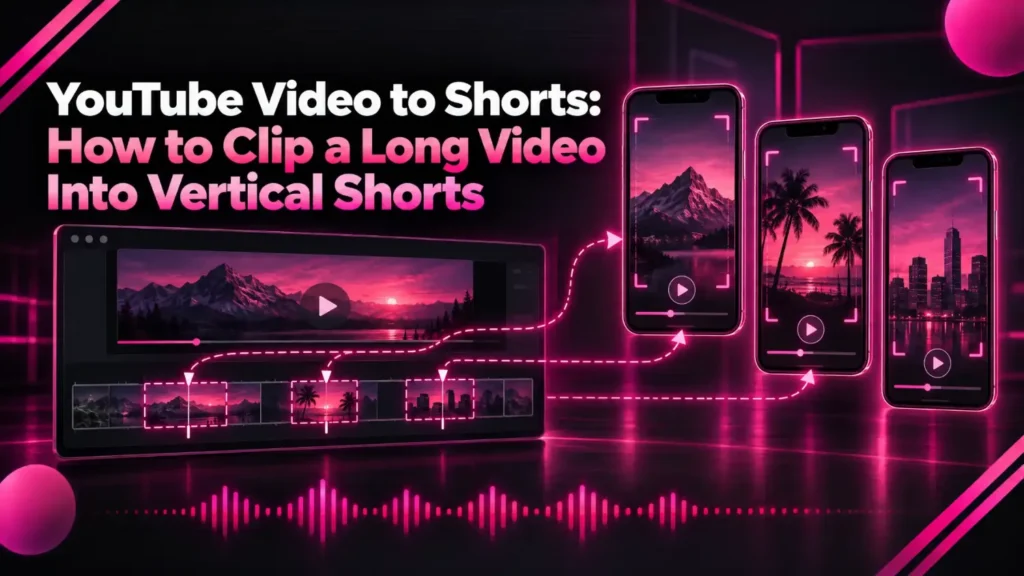
Turning a YouTube video to Shorts means cutting the strongest moments of a long video into separate vertical clips of up to three minutes, each posted as its own Short.
It is the cheapest way to grow a channel you already feed. The long video is recorded, edited and paid for, and each Short is a new way into it.
This guide covers what YouTube counts as a Short, whose videos you can legally clip, five ways to go from YouTube video to Shorts, and how to pick moments, reframe, caption and upload them.
The short answer: for one or two Shorts from your own public video, YouTube Studio’s free Clips and Shorts tool is enough. For many clips from long recordings, an AI clipper such as Klyply finds the moments, reframes them to 9:16 and adds captions in one pass.
Key takeaways
- YouTube treats square or vertical videos up to three minutes as Shorts. Since September 24, 2026, a Short over one minute with an active Content ID claim is no longer blocked automatically, but it only becomes eligible for monetisation once the claim is resolved.
- YouTube’s built-in Remix option turns your own public video into a Short of up to 60 seconds, and the Short links back to the original.
- YouTube Clips are not Shorts. They are 5 to 60 second loops that play on the original video’s watch page.
- Crediting the creator does not give you the right to clip their video. YouTube says permission is needed, even for a few seconds.
- Klyply turns a YouTube link or a file on your PC into 1 to 20 captioned vertical Shorts, rendered on your own Windows computer.
What counts as a YouTube Short?
A YouTube Short is any video with a square or vertical aspect ratio that runs up to three minutes, for videos uploaded on or after October 15, 2024.
That rule is in YouTube’s help article on three-minute Shorts. A 16:9 video stays a regular video, so every YouTube video to Shorts workflow starts by making the clip square or vertical.
The same article sets a rule that matters for clipping. Until September 24, 2026, any Short longer than one minute with an active Content ID claim was blocked automatically.
\n\n\n\nFrom that date such a Short may stay playable. YouTube says it becomes eligible for monetisation once you remove the claimed material or a dispute succeeds.
Can you turn someone else’s YouTube video into Shorts?
You can turn someone else’s YouTube video into Shorts only with the copyright owner’s permission, or through YouTube’s own remix features, which carry their own licence.
YouTube’s page on common copyright myths is direct about three ideas many clippers rely on:
- Giving credit does not automatically give you the right to use the content.
- Using only a few seconds without permission can still cause copyright issues.
- Not monetising the clip does not prevent copyright issues either.
Remixing is the exception built into the app. YouTube’s remix help article says you can use a segment from many videos in a Short, and the result is attributed back to the original.
Every YouTube video to Shorts method below assumes you are clipping your own channel, a client’s footage you are licensed to use, or a creator who has agreed to it.
Clipping other creators’ videos for pay works the same way: the creator or a clipping program they run gives the permission. Our guide to making money clipping videos covers how those programs pay and the rules that void a payout.
5 ways to turn a YouTube video to Shorts
The five ways to turn a YouTube video to Shorts are YouTube Studio’s Clips and Shorts tool, the Remix option in the YouTube app, a manual video editor, an AI clipper, and, for sharing only, YouTube Clips.
| Method | Whose videos | Finds moments for you | Vertical reframing | Cost |
|---|---|---|---|---|
| YouTube Studio Clips and Shorts | Your own | AI suggestions in select countries | Not stated in YouTube’s help | Free |
| Remix, Edit into a Short | Your own public videos | No | Not stated in YouTube’s help | Free |
| Video editor | Any file you have rights to | No | By hand | Free to paid |
| AI clipper such as Klyply | Any file or link you have rights to | Yes | Yes, with face tracking | Klyply from $29 |
| YouTube Clips | Any clippable video | No | No, not a Short | Free |
1. YouTube Studio’s Clips and Shorts tool
YouTube Studio’s Clips and Shorts tool is the free built-in route from YouTube video to Shorts: it turns a segment of one of your uploaded videos into a Short from the desktop, with optional AI-suggested segments and automatic captions.
- In YouTube Studio, open Content, then Videos, and select the video.
- Choose Clips and Shorts from the left menu, then Short.
- Pick a segment yourself or use a suggested one, then preview it and adjust the captions.
- Select Create draft and publish when it is ready.
YouTube’s Studio help article says the AI suggestions are available only in select countries, including the United States, United Kingdom, India and Canada, and in select languages.
It also says you will not be penalised for reusing your own content in a Short. The limit is scale: one segment at a time, from videos already on your channel.
2. Remix: Edit into a Short in the YouTube app
The Remix option in the YouTube app is the quickest YouTube video to Shorts route on a phone: it turns up to 60 seconds of your own public video into a Short, straight from the watch page on your phone.
- Open the watch page of your video in the YouTube app.
- Tap Remix, then Edit into a Short.
- Select up to 60 seconds, tap Next, add text or filters, and upload.
According to YouTube’s help on creating Shorts from your videos, private and unlisted videos and videos with third-party copyright claims cannot be used. The finished Short links back to the original video.
3. A video editor, for full control
A video editor turns a YouTube video to Shorts by hand: you place the source file on a vertical timeline, cut the moment, reframe it and add captions yourself.
- Start from your original export, not a re-download, so the quality stays high.
- Create a 1080 × 1920 sequence and cut the moment you want, starting on its first spoken line.
- Scale and position the frame so the speaker stays centred, keyframing the position when they move.
- Add captions, a title and your logo inside the safe zone, then export and upload as a Short.
An editor gives you the most control over colour, sound and effects. It is also the slowest route, because you watch the whole video to find each moment.
4. An AI clipper: Klyply
An AI clipper turns a YouTube video to Shorts automatically: it transcribes the video, scores every possible moment, and renders the best ones as captioned vertical clips.
Klyply is an AI clipper for Windows that does all of this on your own PC. It suits creators who publish long videos every week and want a batch of Shorts from each one.
How to turn a YouTube video to Shorts in Klyply
- Add the video. Paste a YouTube, Vimeo, X or Twitch link, or open the original file from your drive.
- Set the basics. Choose 1 to 20 clips, a minimum and maximum length, and the 9:16 size.
- Pick a framing. Follow the speaker keeps one person in frame, and Split stacks two people for interviews.
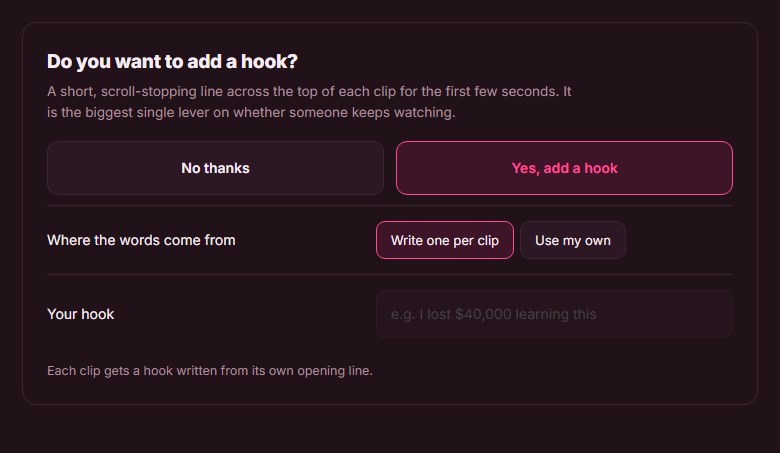
- Choose captions and a hook. Pick one of 27 animated caption styles, and let Klyply write a hook title or type your own.
- Add your logo and render. The clips are saved as MP4 files, ready to upload as Shorts.

How Klyply picks the moments
Klyply builds every candidate clip from whole sentences, so a Short never starts or stops mid-word.
Each candidate is scored on the strength of its opening line, emotional and concrete language, vocal energy, pace, and whether the last sentence finishes the thought. Filler words count against it.
The best non-overlapping clips win, and each gets a title drawn from its opening line. By default it aims for clips of about 30 seconds, within a 15 to 60 second range you can widen to 3 minutes.
Age-restricted and members-only videos
Klyply can open age-restricted or members-only YouTube videos you have access to by borrowing the sign-in from your browser, and only when you switch that on.
It supports Chrome, Edge, Firefox, Brave, Opera, Vivaldi and Chromium. For your own channel, opening the original file from your drive is simpler and gives better quality than any download.
What Klyply costs and where it falls short
Klyply costs $29 for three months or $179 once for a Lifetime licence, with a 12-month term in between, and every plan includes unlimited videos and clips.
It runs on Windows 10 and 11 only and has no free plan. It does not upload to YouTube for you, so publishing stays a manual step in YouTube Studio.
5. YouTube Clips, which are not Shorts
YouTube Clips are 5 to 60 second loops of a video that play on the original video’s watch page, not separate Shorts in the Shorts feed.
YouTube’s Clips help article says clips are public to anyone who can watch the original, and clipping is on by default. They are useful for sharing a moment, but they do not grow your Shorts shelf.
How to pick the right moments for Shorts
The right moments for going from a YouTube video to Shorts open with a line that makes sense on its own, deliver one complete idea, and end when that idea ends.
- A standalone first line. Viewers arrive with no context, so a clip that starts with “and that’s why” loses them.
- One idea. A tip, a story, a strong opinion or a surprising number, not a summary of the whole video.
- Energy. Look for moments where the speaker’s delivery lifts, not a flat stretch of explanation.
- A clean ending. Stop on the last word of the point, not a second later.
Transcripts make this faster than scrubbing. Reading the text of a one-hour video takes minutes, and strong opening lines stand out on the page.
How long should a Short from a YouTube video be?
When you turn a YouTube video to Shorts, each Short can run up to three minutes, but under a minute is the safer default when the video contains any third-party material.
That is because of the claim rule above: a Short over one minute with an active copyright claim is no longer blocked automatically, but it cannot be monetised until the claim is resolved. Background music, stock footage or a clip of someone else’s video can each trigger a claim.
YouTube’s built-in Remix and Clips tools also stop at 60 seconds. Longer Shorts need an editor or a clipper that exports them at full length.
How to reframe a 16:9 video to 9:16 Shorts
To reframe a 16:9 YouTube video to Shorts at 9:16, crop a vertical window from the wide frame and move that window with the speaker, or fit the whole frame inside a blurred vertical background.
Leaving the video horizontal is the weakest option. Google’s Shorts ads specifications note that horizontal videos are shown with blurred areas above and below in the Shorts feed.
- Speaker tracking suits talking-head videos, podcasts and interviews with one person on camera at a time.
- Split screen stacks two people when both matter, such as a host and a guest reacting.
- Blurred background keeps the whole frame for screen recordings, gameplay or wide shots with no single subject.
Captions, titles and safe zones for Shorts
Every YouTube video to Shorts edit needs burned-in captions placed away from the Shorts buttons, and a title that works without the long video’s context.
Burned-in captions carry the clip for anyone watching without sound. Keep captions away from the right-hand button panel and the channel details at the bottom.
Our guide to vertical video safe zones gives the exact margins for Shorts, TikTok and Reels.
For the title, name the payoff of the clip rather than the episode. “Why most budgets fail in March” beats “Episode 42, part 3”.
Common mistakes when turning a YouTube video to Shorts
The most common mistake when turning a YouTube video to Shorts is posting a horizontal clip, which plays small with blurred bars instead of filling the phone.
- Clipping without rights. Credit and short length do not replace permission.
- Long Shorts with claimed music. Over one minute, an active claim holds back monetisation until it is resolved.
- Starting mid-sentence. The first second decides whether a viewer stays.
- Confusing Clips with Shorts. A Clip stays on the watch page and never reaches the Shorts feed.
- Re-downloading your own video. Your original file is higher quality than any copy from YouTube.
- Captions in the button area. Text behind the like button or channel name is text nobody reads.
YouTube video to Shorts FAQs
Can I turn a YouTube video to Shorts for free?
Yes, YouTube Studio’s Clips and Shorts tool and the Remix option in the YouTube app both turn your own videos into Shorts for free, one segment at a time.
How long can a Short made from a long video be?
A Short can be up to three minutes long, but YouTube’s Remix tool only selects up to 60 seconds, and a Short over a minute with an active copyright claim only becomes eligible for monetisation once the claim is resolved.
Can I make Shorts from unlisted or private videos?
Not with Remix, which only works on public videos. You can still edit Shorts from the original file of an unlisted or private video in an editor or a desktop clipper.
Is it legal to clip other creators’ YouTube videos?
Only with permission from the copyright owner or through YouTube’s remix features. YouTube says credit, short length and non-commercial use do not by themselves make it allowed.
What is the difference between a YouTube Clip and a Short?
A Clip is a 5 to 60 second loop that plays on the original video’s watch page, while a Short is its own vertical video that appears in the Shorts feed.
How many Shorts can Klyply make from one YouTube video?
Klyply turns each YouTube video to Shorts in batches of 1 to 20, with no limit on the length of the source video and no limit on how many videos you process.
Does Klyply upload my video to a server?
No, Klyply transcribes, clips and renders on your own Windows PC. Our guide to offline video clipping software explains what that means for private footage.
Final thoughts
Turning a YouTube video to Shorts is mostly a question of volume.
If you want one Short from last week’s upload, YouTube Studio’s Clips and Shorts tool is free and good enough. If you want full creative control over a few clips, use a video editor.
If you publish long videos every week and want five, ten or twenty Shorts from each, use Klyply. It finds the moments, frames the speaker, adds captions and renders the batch on your own PC.
Whichever YouTube video to Shorts route you take, clip only what you have the rights to, and keep claimed Shorts under a minute. For a cost comparison of clipping tools, see our guide to clipping software you buy once.