Offline Video Clipping Software: 7 Best Tools That Keep Your Footage Off the Cloud
Offline video clipping software clips long videos on your own device with no upload. Seven local AI clippers compared, led by Klyply for Windows, plus what OpusClip and Vizard store.
Offline video clipping software is a tool that turns long videos into short clips on your own computer or phone, without uploading the footage to anyone’s servers.
Most AI clippers work the other way. You upload a recording, their cloud finds the moments, and a copy of your video sits on a server you do not control.
That is fine for a public YouTube video, and it is why offline video clipping software exists. It is a problem for client work under NDA, an unreleased podcast episode, internal training footage or anything a guest has not approved yet.
This guide explains what “offline” really means for a clipper, what the big cloud tools keep and for how long, what to check before you choose, and seven tools that clip without an upload.
The short answer: on a Windows PC, Klyply is the best offline video clipping software for talking-head content, with no uploads, no credits and no subscription. On an Apple Silicon Mac, look at Reelify AI, and on an iPhone, Clipped.
Every claim about another tool links to that company’s own site, help centre or store listing, checked in September 2026.
Key takeaways
- Cloud clippers store your uploads on their servers: OpusClip on Google Cloud in the United States, Vizard on AWS in California.
- Offline video clipping software transcribes, picks moments and renders on your own hardware, so the footage never leaves the device.
- “Offline” rarely means zero internet. Most tools go online once to activate or download their AI models, then clip without a connection.
- Klyply is the best offline video clipping software for Windows: local processing, unlimited clips, and a $179 Lifetime licence.
- Mac users should look at Reelify AI, iPhone users at Clipped, and gaming streamers at the free ZoneClip beta.
What is offline video clipping software?
Offline video clipping software is a clipper whose transcription, moment detection, reframing, captioning and rendering all run on the device in front of you.
You open a file from your own drive, the offline video clipping software analyses it locally, and the finished MP4 clips land in a folder on the same machine. Nothing is sent to a server to be processed.
The AI models that do the work, such as a speech recognition model and a face detector, live on your disk. Your processor or graphics card runs them instead of a data centre.
Are offline, local and on-device the same thing?
Offline, local and on-device describe the same idea from different angles: where the processing happens, and whether a connection is needed while it happens.
- Local processing means your own computer does the work. It says nothing about whether the app phones home for other reasons.
- On-device is the phone and Mac word for the same thing, usually meaning Apple’s Neural Engine or GPU runs the models.
- Offline is the strongest claim: the clipping job finishes with the network cable pulled or airplane mode on.
- “No upload” in a browser tool can mean the file is processed inside the web page, which is private but usually limited to trimming rather than AI clip selection.
What happens to your footage in a cloud clipper?
In a cloud clipper, your video is uploaded to the company’s servers, processed there, and stored for a period that depends on your plan.
That is how a cloud product works, and both of the largest tools document it clearly. It is still worth knowing before you upload something confidential.
OpusClip: Google Cloud servers, 3 to 30 days of storage
OpusClip processes and stores data on Google Cloud servers in the United States, according to its privacy policy.
The same policy lets you opt out of your personal data being used for its AI research and model development, by emailing the company. It is an opt-out, not an opt-in.
OpusClip’s help article on saving projects says projects expire 3 days after creation on the free plan, 7 days on a trial and 30 days on Starter and Pro.
Vizard: AWS in California, deleted after 7 days on free
Vizard stores videos on AWS servers in California with AES-256 encryption, according to its data safety article.
Free users’ videos are deleted automatically seven days after upload, and you can delete a project immediately. Vizard says it has not used customer data to train its models and does not plan to.
Cloud clipper storage compared
This table sets the two largest cloud clippers against offline video clipping software on where footage goes and how long it stays.
| OpusClip | Vizard | Offline clipper | |
|---|---|---|---|
| Where the video is processed | Google Cloud, United States | AWS, California | Your own device |
| Upload required | Yes | Yes | No |
| How long projects are kept | 3 to 30 days by plan | 7 days on free | Until you delete the files |
| Use in AI development | Opt out by email | Not used, per Vizard | Nothing leaves the device |
| Works without internet | No | No | Yes, after setup |
Who needs offline video clipping software?
Anyone whose footage should not sit on a third party’s server needs offline video clipping software, along with anyone whose internet is too slow to upload hours of video.
- Agencies and freelance editors. Client contracts and NDAs often restrict where raw footage can be stored or processed.
- Podcasters with unreleased episodes. Guests may not want a pre-release recording on anyone else’s server, and a leak spoils the launch. The steps are in our guide to repurposing a podcast into short clips.
- Companies clipping internal video. All-hands meetings, training sessions and product demos can include confidential material.
- Coaches, therapists and course creators. Sessions with clients or students carry personal details that a privacy policy cannot take back once uploaded.
- Creators on slow or metered connections. A two-hour 4K recording can take longer to upload than to clip locally.
- People who travel. An offline video clipper keeps working on a plane, in a hotel with bad Wi-Fi, or on location.
What to check before choosing offline video clipping software
Before choosing offline video clipping software, check five things: what still needs the internet, whether it picks clips or only cuts them, which device it runs on, how fast it is on your hardware, and how it is priced.
Does anything still need the internet?
Almost every offline video clipping software option needs the internet at least once, to activate a licence, sign in or download its AI models.
What matters is whether your video goes with it. A licence check sends a key, not a recording, and a model download comes to your machine rather than leaving it.
The easy test for any offline video clipping software is to switch on airplane mode after setup and run a full clipping job. If it finishes, the tool is offline in the sense that matters.
Does it pick the clips, or only cut them?
An AI clipper finds the best moments for you, while a video editor or trimmer only cuts where you tell it to.
Many tools marketed as “no upload” are browser trimmers or full editors. They are private, but on a two-hour podcast you still do the listening yourself.
Which device does it run on?
Offline video clipping software is almost always tied to one platform, because it is built around that platform’s hardware.
Klyply and ClipForge need Windows, Reelify AI needs an Apple Silicon Mac, and Clipped needs an iPhone. Cross-platform options exist, but they are either in beta or need technical setup.
How fast is it on your hardware?
An offline video clipper is only as fast as the computer running it, so a long recording on an older laptop can take a while.
A graphics card or Apple Silicon chip speeds up offline video clipping software the most, mainly during transcription. You do save the upload and download time a cloud tool needs, which on a slow connection can outweigh the difference.
How is it priced?
Offline video clipping software is usually cheaper to run than a cloud clipper, because the developer is not paying for servers every time you clip.
That is why several of these tools sell one-time licences and none of them meter minutes. Our guide to clipping software you pay for once compares the costs in detail.
The 7 best offline video clipping software options
The seven best offline video clipping software options in 2026 are Klyply, Reelify AI, ClipForge, Clipped, ZoneClip, AutoClip and DaVinci Resolve.
The first six choose clips for you with AI. DaVinci Resolve is a free professional editor for people who would rather pick every moment by hand.
1. Klyply: the offline video clipper for Windows PCs
Klyply is a Windows application that turns long videos into short vertical clips entirely on your own PC, with no uploads, no credits and no subscription.
It was built around one idea: the footage never leaves the machine it was recorded or saved on. That makes it the offline video clipping software we recommend for Windows users with private or unreleased content.
What stays on your PC
Everything Klyply does to your video happens on your PC: transcription, moment scoring, face detection, reframing, captions and the final render.
Speech is transcribed with a Whisper model running locally, and faces are found with a detection model that ships inside the app. Finished clips are saved as MP4 files in a folder you choose.
When Klyply uses the internet
Klyply goes online for setup and licensing, never to process your video.
- Activation. Your licence key is activated online once, then Klyply runs offline, as its licence agreement states.
- First-run components. FFmpeg and the speech recognition model are downloaded the first time they are needed, onto your PC.
- Links. A pasted YouTube, Vimeo, X or Twitch link is downloaded to your PC first, while a file from your own drive needs no connection.
- Licence checks. When a connection is available, Klyply occasionally confirms the key is still valid, and with no connection it keeps working.
How Klyply picks the clips
Klyply scores every candidate moment on hook strength, emotional and concrete language, vocal energy, delivery pace and whether the thought is complete.
You choose 1 to 20 clips per video, and there is no limit on video length. A three-hour recording is a single job, and it uses a graphics card if you have one or the CPU otherwise.
Framing, captions and branding
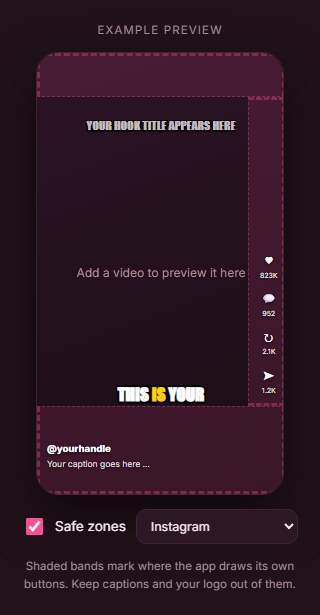
Klyply includes five framing layouts, 27 animated caption styles, automatic hook titles and your logo on every clip.
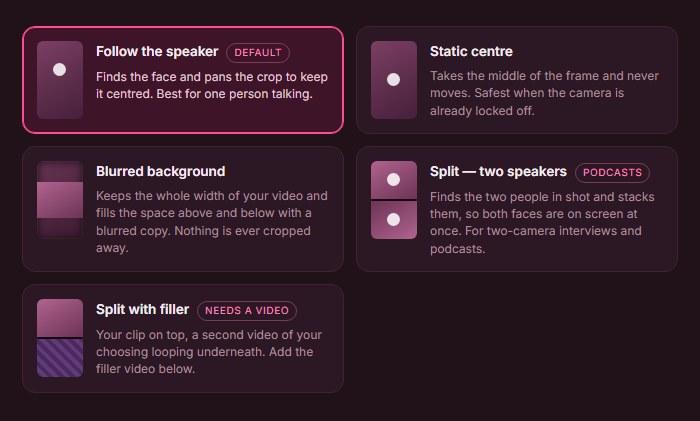
Follow the speaker keeps the crop on the person talking, and Split stacks two people for interviews and podcasts. Exports are 9:16, 4:5, 1:1 or 16:9, one shape per render, with no watermark.
What Klyply costs
Klyply costs $179 once for a Lifetime licence, or $29 for a three-month licence, and a 12-month term is also available.
None of them renew automatically, and every plan includes unlimited videos and clips. Refunds are available within 14 days of purchase while the key is unactivated.
Klyply vs a cloud clipper
Here is how Klyply compares with OpusClip, the best known cloud clipper, on the points that matter for private footage.
| OpusClip | Klyply | |
|---|---|---|
| Where clipping runs | Google Cloud servers | Your Windows PC |
| Video uploaded | Yes | No |
| Project storage | 3 to 30 days by plan | Your own drive, for as long as you keep it |
| Works offline | No | Yes, after activation and setup |
| Usage limit | Credits, 1 per minute of video | Unlimited |
| Pricing | Subscription, free plan with watermark | $179 Lifetime or a fixed term, no free plan |
| Platforms | Web, iOS, Android | Windows 10 and 11 |
For a full look at OpusClip’s credits and limits, read our Opus Clip alternatives comparison.
Where Klyply falls short
Klyply runs on Windows 10 and 11 only, and it has no free plan.
It has no team workspace, social scheduler or caption translation. Long files take as long as your own computer needs, so an older laptop without a graphics card will be slower than a cloud server.
2. Reelify AI: local clipping on Apple Silicon Macs
Reelify AI is a Mac app that transcribes, finds moments and exports clips on your own Mac, and it is the closest offline video clipping software to Klyply for Mac users.
Its local AI video clipper page says audio transcription, moment detection, visual analysis and export all run on-device, and that core processing works fully offline. It needs an Apple Silicon Mac; Intel Macs are not supported.
The free tier allows unlimited imports with pattern-based moment detection. A $59 lifetime deal or $15 monthly plan adds its Viral Context AI, which the page describes separately from the on-device pipeline, so check that feature if nothing may leave your Mac.
3. ClipForge: a local Windows clipper sold by subscription
ClipForge is a local AI video clipper for Windows 10 and 11 that processes video on your own CPU or GPU, sold as a monthly or yearly subscription.
ClipForge’s site says video files never leave your machine and processing works fully offline, with the internet needed only for signing in, licence verification and optional online services.
It costs $9.99 a month or $89.99 a year, with a free plan through the Microsoft Store. Features include three analysis styles, batch processing, animated captions, subject tracking and YouTube publishing.
4. Clipped: offline clipping on an iPhone
Clipped is an iPhone app that clips long videos entirely on the phone and works in airplane mode.
Its App Store listing says every model runs on-device and footage is never sent anywhere. The app is free to download, a watermark remover costs $9.99, and version 2.0 requires iOS 26 or later.
It is a good pick for clips shot on the phone itself. For hour-long recordings, desktop offline video clipping software is more practical.
5. ZoneClip: a free local clipper for gaming VODs
ZoneClip is a free, local-first AI clip maker for gaming VODs, available as a beta for Windows and Apple Silicon Macs.
ZoneClip’s site says the original VOD and final export stay on your device, cloud processing is optional, and local mode can run fully offline once its models are installed.
It detects highlights in titles such as VALORANT, Fortnite and League of Legends, and exports up to 4K at 60 fps. It is built for gameplay, not podcasts or interviews.
6. AutoClip: an open-source offline clipper for technical users
AutoClip is a free, open-source clipper under the MIT licence that can run fully offline with Whisper for transcription and Ollama for choosing moments.
Its GitHub repository lists speaker-tracked 9:16 reframing, caption styles and a review screen before export. It needs Python 3.11 or 3.12 and an FFmpeg build with libass and libx264.
You can also plug in a cloud AI provider’s API key instead of Ollama. In that mode the transcript text is sent to that provider, although the video itself stays local.
7. DaVinci Resolve: a free offline editor for manual clipping
DaVinci Resolve is a professional video editor from Blackmagic Design that runs offline on your computer, with a free version and a $295 Studio version.
Blackmagic’s DaVinci Resolve page lists the free version alongside Studio, which adds the DaVinci AI Neural Engine, text-based editing and voice isolation.
It is not offline video clipping software in the AI sense, because it does not choose highlights. It suits editors who want complete control and are happy to find every moment themselves.
Offline video clipping software compared
This table compares all seven offline video clipping software options on platform, AI clip selection, what needs the internet, and price.
| Tool | Platform | Picks clips with AI | Internet needed for | Price |
|---|---|---|---|---|
| Klyply | Windows 10 and 11 | Yes | Activation, first-run downloads, links | $179 Lifetime, or $29 for 3 months |
| Reelify AI | Apple Silicon Mac | Yes | Paid Viral Context AI feature, per its page | Free, $59 lifetime or $15 a month |
| ClipForge | Windows 10 and 11 | Yes | Sign-in and licence verification | Free plan, $9.99 a month or $89.99 a year |
| Clipped | iPhone, iOS 26+ | Yes | Nothing listed for clipping | Free, $9.99 watermark removal |
| ZoneClip | Windows, Apple Silicon Mac | Yes, gaming | Model installation, optional cloud | Free beta |
| AutoClip | Any, with Python | Yes | Only if you use a cloud API key | Free, open source |
| DaVinci Resolve | Desktop | No, manual editing | Not needed to edit | Free, Studio $295 |
How to clip sensitive footage offline, step by step
To clip sensitive footage offline, finish every online step before the footage touches the app, then test the whole job without a connection.
- Install and activate while online. Enter your licence key or sign in before you open any private file.
- Run a test job on a public video. This triggers any first-run downloads, such as speech models or FFmpeg, so they are in place.
- Disconnect and clip the test video again. If the job finishes with Wi-Fi off, your offline video clipping software is ready.
- Open the private recording from your own drive. Avoid pasting links to private uploads, since that sends a request to the hosting site.
- Check where exports and working files are saved. Keep them on an encrypted drive if your contract requires it, and delete working files when the project ends.
When is a cloud clipper still the better choice?
A cloud clipper is still the better choice over offline video clipping software when your footage is already public, you work in a team, or your computer is too slow for long renders.
- Your videos are already on YouTube. If the recording is public, uploading a copy exposes nothing new.
- You work in a team. Shared workspaces, comments and seats are cloud features that local apps rarely offer.
- You switch devices. Browser tools run on Mac, Windows, Linux and Chromebooks without installing anything.
- You want posting built in. Most cloud clippers schedule straight to TikTok, YouTube and Instagram.
- You clip a few videos a year. A free cloud plan may cover you without buying anything.
If cost rather than privacy is your main concern, our comparisons of Vizard alternatives on price and refunds, Ssemble alternatives for long videos and Choppity alternatives by monthly hours cover the cloud side in depth.
Offline video clipping software FAQs
Is there AI video clipping software that works offline?
Yes, Klyply and ClipForge on Windows, Reelify AI on Apple Silicon Macs, Clipped on iPhone and ZoneClip for gaming all clip video with AI on your own device.
Most need the internet once to activate or download models, then clip without a connection.
Does OpusClip store my videos?
Yes, OpusClip stores uploaded projects on Google Cloud servers in the United States, and they expire after 3 days on the free plan and 30 days on Starter and Pro.
Does Vizard use my videos to train its AI?
No, Vizard says it has not used customer data to train its models and does not plan to. Your uploads are still stored on AWS servers in California.
Is offline video clipping software slower than cloud tools?
Offline video clipping software can be slower on an older computer, because your own hardware does the work.
On a modern PC with a graphics card or an Apple Silicon Mac, skipping the upload and download often makes the total time comparable.
Does Klyply work without internet?
Yes, Klyply clips videos from your drive without internet once it is activated and its first-run components are downloaded.
Does Klyply upload my videos?
No, Klyply never uploads your videos. Transcription, clip selection, reframing, captions and rendering all run on your Windows PC.
Is there free offline video clipping software?
Yes, ZoneClip is free for gaming clips, AutoClip is free and open source, and Reelify AI and ClipForge have free tiers. DaVinci Resolve is free for manual editing.
What is the best offline video clipper for Mac?
Reelify AI is the best offline video clipper for Apple Silicon Macs, because its transcription, moment detection and export run on the Mac itself. Klyply does not run on macOS.
Final thoughts
Offline video clipping software is worth choosing whenever the footage matters more than the convenience of a browser tab.
Cloud clippers are open about storing your uploads, and for public videos that is a fair trade. For client work, unreleased episodes and internal recordings, it is a risk you do not need to take.
On a Windows PC, choose Klyply: AI clip selection, speaker framing and captions, all on your own machine, for one payment.
On a Mac, the offline video clipping software to choose is Reelify AI, and on an iPhone, Clipped.
For gaming VODs pick ZoneClip, and if you are comfortable with Python, AutoClip.
Whichever offline video clipping software you pick, run one test job in airplane mode before trusting it with anything confidential.